ELECTROMATIC PosiTector 6000 Manuale utente

PosiTector 6000
INSTRUCTION MANUAL v. 6.0/M
for Memory (3) models
Coating Thickness Gages
Separate
probe
Built-in
probe
ELECTROMATIC
E Q U I P M E N T C O., I N C.
600 Oakland Ave., Cedarhurst, NY 11516–U.S.A.
TEL: 516-295-4300 •FAX: 516-295-4399

Introduction
Introduction
Power-up / Power-down
The PosiTector 6000 powers-up when any button is
pressed. To preserve battery life, the Gage powers-
down after approximately 3 minutes of no activity. All
settings are retained.
Principles of Operation
Fprobes use the magnetic principle to measure
the thickness of non-magnetic coatings on ferrous
metals.
Nprobes use the eddy current principle to meas-
ure the thickness of non-conductive coatings on
non-ferrous metals.
FN probes combine the full abilities of both the "F"
and "N" probes.
Certification
All probes or gages are shipped with a Certificate of
Calibration. For organizations with re-certification
requirements, gages may be returned at regular
intervals for calibration. DeFelsko recommends that
customers establish gage calibration intervals based
upon their own experience and work environment.
Based on our product knowledge, data and
customer feedback, a one year calibration interval
from either the date of calibration, date of purchase,
or date of receipt is a typical starting point.
The PosiTector 6000 hand-held, electronic Gage
non-destructively measures the thickness of coat-
ings on metals, quickly and accurately.
2

3
Quick S
Quick St
tart
art
1.Separate probe models - remove black protective
rubber cap from probe if supplied. Built-in probe
models - remove Gage from protective rubber
holster.
2.Turn Gage on with any button.
3.Place the probe FLAT on the surface to be
measured. HOLD STEADY. When a valid
measurement is calculated, the Gage BEEPS
twice, the bi-color LED blinks green, and the
measurement is displayed.
4.Lift probe AT LEAST 2 INCHES (5cm) from the
surface between measurements - OR - leave probe
on the surface in the same location for continuous
measurements every 2 seconds. Do not drag the
probe sideways across the surface.
Golden Rule
Golden Rule
Measure your uncoated part first! This quick zero-
check determines if a calibration adjustment is need-
ed for your substrate. (See pg.5)
Next, lay the included plastic shims onto a bare sur-
face and measure them individually to ensure the
Gage measures a known thickness within tolerance.

4
Menu Operation
Menu Operation
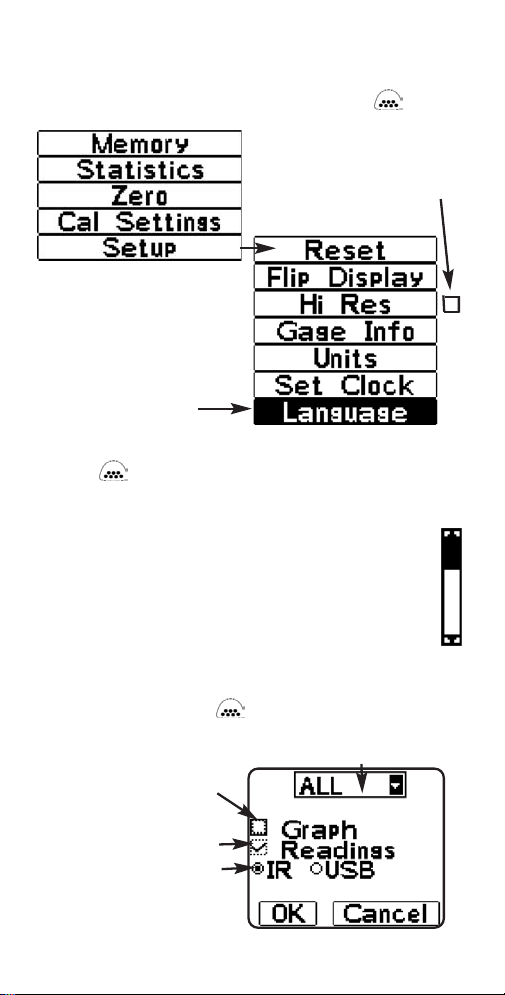
Current selection is
displayed with darkened
background
Some buttons have a tick box
to their right to indicate current
status. An empty box indicates
that feature is not active.
Gage functions are menu controlled. To access the
Menu, turn the Gage on, then press the button.
To navigate, press (-) to scroll DOWN, (+) to scroll
UP and to SELECT. Press both (-)(+) buttons at
any time to exit any menu or select Exit from the
Menu.
When there are more menu options than can fit
onto one screen, a scroll bar will appear. The
dark area indicates what portion of the total
menu you are currently viewing.
List boxes have a down arrow on the right-hand side.
Use the (-) and (+) buttons until your desired choice
appears, then press to select this choice and
move focus onto the next item.
“Focus” is currently at this
unselected (empty) square box
“Radio” buttons.
Only one can be
selected at a time.
“List“ box
a “tick” indicates this square
box has been selected

5
Calibration,
Calibration, V
Verification
erification
and
and Adjustment
Adjustment
Three steps ensure best accuracy…
1. Calibration - typically done by the manufacturer
or a qualified lab
2. Verification of Accuracy - as done by the user
3. Adjustment - to a known thickness
Calibration
Calibration is the controlled and documented
process of measuring traceable calibration
standards and verifying that the results are within the
stated accuracy of the Gage. Calibrations are
typically performed by the Gage manufacturer or by
a certified calibration laboratory in a controlled
environment using a documented process.
Verification
Verification is an accuracy check performed by the
user using known reference standards. A successful
verification requires the Gage to read within the
combined accuracy of the Gage and the reference
standards.
Adjustment
Adjustment, or Calibration Adjustment is the act of
aligning the Gage's thickness readings to match that
of a known sample in order to improve the
effectiveness of the Gage on a specific surface or in
a specific portion of its measurement range. 1-point
or 2-point calibration adjustments are possible and
these are stored in calibration settings (pg. 9).
the symbol disappears whenever a
calibration adjustment is made to the gage.
The PosiTector 6000 is factory calibrated and
performs an automatic self-check each time it takes
a measurement. For many applications no further
NOTE:

6
adjustment is necessary after a Reset (pg.15). Just
check ZERO on the uncoated substrate, then
measure.
But sometimes Gage readings can be influenced by
changes in substrate shape, composition, surface
roughness or by measuring in a different location on
the part. That is why Calibration Adjustments are
made possible.
1- or 2-point Calibration Adjustments may be
performed if readings are not falling within the
expected range of thickness for the application being
measured.
Where a calibration adjustment method has not
been specified, use a 1-point method first. If meas-
uring the included shims reveals inaccuracies, use
the 2-point method. Factory Calibration settings
can be restored at any time by performing a Reset
(pg.15), creating a NEW calibration setting (pg. 9), or
by DELETING the adjustments made to the Cal 1
calibration setting (pg.10). The symbol appears
on the display whenever factory calibration settings
are in use.
With “FN” Gages, calibration adjustments are
made only to the “F” or “N” mode (stored independently
under a particular Cal), whichever was measured last.
Once adjusted, you may “lock” the current cal-
ibration adjustment to prevent further modification. (See
“Cal Lock” on pg. 9)
1-point Calibration Adjustment
Also known as an offset or correction value, there
are 4 ways to perform this adjustment:
(1) Simple Zero Calibration Adjustment
Measure your uncoated part. If the Gage does not read
"0" within the tolerance of the probe being used, lift the
probe from the surface and adjust the display down (-)
or up (+) until it reads "0". Measure and adjust until the
NOTE:
NOTE:

7
average of a series of readings on the uncoated surface
is "0" .
(2) Average Zero Calibration Adjustment
To establish “0” on a rough or curved surface a
preferred method is to take several readings on the
uncoated part and average the result.
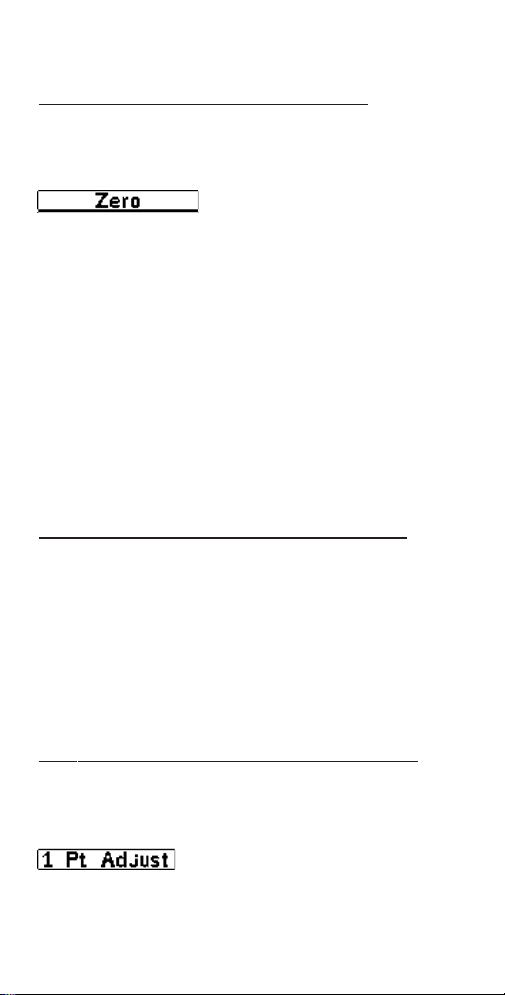
1.Select the Zero menu option.
2.Press (+) to select the number of readings to be
used to obtain an average, typically 3 to 10
readings. The greater the variation between
readings, the more readings should be taken to
obtain an average.
3.Repeatedly measure the uncoated part. The Gage
will wait 2 seconds between readings to allow the
user to correctly position the probe on the surface.
After the last measurement the Gage will calculate
and display "0" which represents the average of all
the Zero readings taken.
(3) Simple Adjustment to a Known Thickness
It is sometimes desirable to adjust the Gage to a
known thickness, such as a shim, rather than
adjusting it to zero.
Measure the object. If the expected reading is not
obtained (within tolerance), lift the probe from the
surface and adjust the displayed reading down (-) or
up (+) to the expected thickness. Hold the button
down to increase the rate of adjustment.
(4) Average Adjustment to a Known Thickness
On rough or curved surfaces a preferred method is
to take several readings on the known thickness and
average the result.
1.Select 1 Pt Adjust from the Cal Settings menu.
2.Press (+) to select the number of readings to be

used to obtain an average, typically 3 to 10
readings. The greater the variation between
readings, the more readings should be taken to
obtain an average.
3.Repeatedly measure the known thickness
reference. The Gage will wait 2 seconds between
readings to allow the user to correctly position the
probe on the surface. After the last measurement
the Gage will calculate and display the reading
which represents the average of all the
measurements taken. If the expected reading is
not obtained (within tolerance) lift the probe from
the surface and adjust the reading down (-) or up
(+) to the expected thickness and press .
2-point Calibration Adjustment
-Preferred for very unusual substrate materials,
shapes or conditions. Provides greater accuracy
within a limited, defined range.
This method requires taking two readings at known
thickness values: a thin value (often zero) and a
thicker value. These values should be on either side
of the thickness range to be measured.
1.Select 2 Pt Adjust from the Cal Settings menu.
2.Press (+) to select the number of readings to be
used to obtain an average on the thinner item,
typically 3 to 10 readings. The greater the variation
between readings, the more readings should be
taken to obtain an average.
3.Repeatedly measure the thinner item. The Gage
will wait for 2 seconds on the surface to allow the
user to correctly position the probe on the surface.
After the last measurement the Gage will calculate
and display a thickness value which represents the
average of all the readings taken using the factory
calibration settings.
8

4.Lift the probe from the surface and adjust the
displayed reading down (-) or up (+) to the known
thickness value of the thin item. Press to accept
this value.
5.Repeat steps 2 - 4 for the thicker item.
When selected, the icon will appear and the
current calibration settings are “locked” to prevent
further user adjustments.
User Mode Calibration
There are applications where 1- or 2-point
calibrations will not work satisfactorily such as when
measuring magnetic coatings, or conductive
coatings over non-metals. For these applications the
included PosiSoft software can download special Cal
settings.
Calibration Memory
Calibration Memory
It is often convenient to retain a particular
calibration adjustment before making another. Then,
if you return to that part, the corresponding
calibration setting can be restored.
A “setting” is any calibration adjustment. The
PosiTector 6000 always displays the currentcalibra-
tionsetting(ex. Cal 3) in the upper right corner of the
display.
The setting called Cal 1 has unique features. It can be
adjusted but never deleted, and is always made
active with factory settings after a Reset (see pg.15).
-creates a new calibration setting using the next
available number (Maximum of 10). By default, these
new Cal settings are initially created with the Gage’s
factory settings. This is indicated with the icon
9

-removes a setting completely from the list. That Cal
number can be reused later with the New command.
A setting cannot be deleted if readings have been
stored into a batch using that calibration setting.
Delete all readings in that batch first (see Memory
Management pg. 11). Although Cal 1 cannot be
deleted, the Delete function will return it to factory
settings.
-sends a list of all Calibration Settings to either the IR
printer using the Gage’s built-in IR port, or to a PC’s
default printer using the included USB cable.
10
-loads an existing setting. Use the (-)(+) buttons to
scroll the List box until the desired setting appears,
then press . A warning message will prevent the
opening of a stored Cal setting if a batch is open and
has readings. Create a new batch first or open a
batch containing no readings. (see pg.12)
which appears at the bottom of the display. A
warning message will prevent the creation of a new
Cal Memory if a batch is open and has readings.
Delete the batch first. (see pg.12)
Indice
Altri manuali ELECTROMATIC Strumento di misura

ELECTROMATIC
ELECTROMATIC CHECK-LINE MTG Manuale utente

ELECTROMATIC
ELECTROMATIC TI-007DL Manuale utente

ELECTROMATIC
ELECTROMATIC CHECK LINE DTMB-200 Manuale utente

ELECTROMATIC
ELECTROMATIC TI-25M-MMX Manuale utente

ELECTROMATIC
ELECTROMATIC FS2 Manuale utente

ELECTROMATIC
ELECTROMATIC Check-Line RH1 Manuale per l'uso e la cura

ELECTROMATIC
ELECTROMATIC STM-50 Manuale utente

ELECTROMATIC
ELECTROMATIC Check-line DT-205LR Manuale utente