
Lindy 32699 Manuale utente

© LINDY ELECTRONICS LIMITED & LINDY-ELEKTRONIK GMBH - FIRST EDITION (FEB 2004)
For Home and Office Use
Tested to Comply with
FCC Standards
Wireless Projector Server
User Manual English
(Model Name: WPS-VideoPro)
LINDY No. 32699
www.LINDY.com

2
Table of Contents
1.
Overview
.....................................................................................................4
2.
Quick Start
.................................................................................................6
3.
Windows Client Utility
........................................................................... 9
3.1
Starting rogram
................................................................................. 9
3.2
Login
......................................................................................................10
3.3
Main User Interface
..........................................................................10
3.4
Screen rojection
.............................................................................. 11
3.5
Magnifier Feature
.............................................................................. 11
3.6
Video/Music streaming Feature
..................................................12
3.7
Menu Description
..............................................................................13
3.7.1
Show Login Code
...........................................................................13
3.7.2
Open Admin Web age
................................................................14
3.7.3
Searching Server
...........................................................................15
3.7.4
Magnifier Option
............................................................................15
3.7.5
rojection Quality
.........................................................................16
3.7.6
rojection Source
..........................................................................16
3.7.7
Connection rofile
.........................................................................17
3.7.8
Auto WiFi connect
......................................................................... 19
3.7.9
Auto ower Manager
...................................................................19
3.7.10
Hide UI
..........................................................................................20
3.7.11
Advanced Screen Capture
...................................................... 20
3.7.12
Repeat
...........................................................................................21
3.7.13
Make nS Token
........................................................................22
3.7.14
Copy Application to desktop
.................................................23
3.7.15
About
..............................................................................................23
3.7.16
Exit
..................................................................................................24
4.
W S for DA
............................................................................................25
5.
Mac Client Utility
...................................................................................26
5.1
Launch Application
........................................................................... 26
5.2
Main User Interface
..........................................................................27
5.3
Screen rojection
..............................................................................27
5.4
Video/Music streaming Feature
..................................................28
6.
Web Management
.................................................................................29
6.1
Home age
...........................................................................................29
6.2
Download Software
..........................................................................30
6.3
Conference Control
........................................................................... 31

3
6.4
Login Web Admin
.............................................................................. 32
6.4.1
System Status
.................................................................................33
6.4.2
Network Setup
...............................................................................33
6.4.3
rojection Setup
............................................................................ 36
6.4.4
Change asswords
........................................................................ 37
6.4.5
Reset to Default
............................................................................. 37
6.4.6
Firmware Upgrade
........................................................................38
6.4.7
Reboot System
...............................................................................39
6.4.8
Logout
................................................................................................40

English Manual
4
1.Overview
WPS is a must-have device for your meeting room! It turns your e isting "wired"
projector into a "high-end wireless" projector. With the revolutionary
Plug-and-Show, 4-to-1 split screen and PDA wireless projection features, WPS
makes every of your presentation and meeting efficient and successful.
Plug & Show
With the accompanied Plug & Show USB Token, wireless presentation becomes easy!
Just link your PC/Laptop to WPS (through WLAN or Ethernet), plug the token into a
USB port, and in seconds, your screen will be wireless projected to the connected
projector!
4-to-1 Split Screen Projection
With this 4-to-1 split screen feature, up to four PC screens can be projected to one
projector in the same time. Thus you can easily do side-by-side comparison from
four PC / PDAs to increase meeting productivity!
PDA wireless Projection
You don't have to bring the laptop for business presentation anymore. Just
connect your PDA phone to WPS through WiFi, and start your professional and
stylish presentation right away!
Conference control
WPS supports Conference Control function for easily moderating the conference.
The conference moderator can control projection from connected PCs through a
web-based control page. So you can streamline your meeting/presentation to be
more fluent and in order.
Magnifier feature
WPS supports Magnifier feature for codec-free video clips watching e perience. By
drag and drop the video into magnifier capture region, you will be able to watch the
video on big screen with best e perience.

English Manual
5
Macintosh(Mac) wireless Projection
WPS supports Mac client connected and projected wirelessly. By launching the Mac
client software that stored in accompanied USB token, WPS provide the same
e perience to Mac user to utilize the wireless presentation feature.
Features
■ Support Windows Vista, XP, 2000 and Mobile 5/6
■ Support Macintosh(Mac) version 10.4 and above.
■ Plug and Show! No installation required … just plug in the accompanied
token to a USB port, and hassle free presentation can be started in seconds.
■ 4-to-1 split screen projection! Turn one projector into four, increase
meeting productivity right away.
■ PDA wireless projection! PC-less stylish presentation becomes possible!
■ Conference control! Allow moderators to streamline grand meetings.
■ Provide session security login, wireless WEP/WPA key and Gatekeeper
function to protect presentation contents and keep good security to office
networks.
■ Provide magnifier feature to enlarge small video region to playback
with full screen.
■ Provide media playback feature, support music and video streaming.

English Manual
6
2.Quick Start
1) Connect projector VGA cable to WPS bo VGA connector and turn on projector
power.
2) Turn on WPS bo .
♦When Projector shows the default menu on the screen as below, it
indicates the WPS bo is ready now.
3) Make sure your PC WLAN is enabled already, and connect your PC with WPS bo .
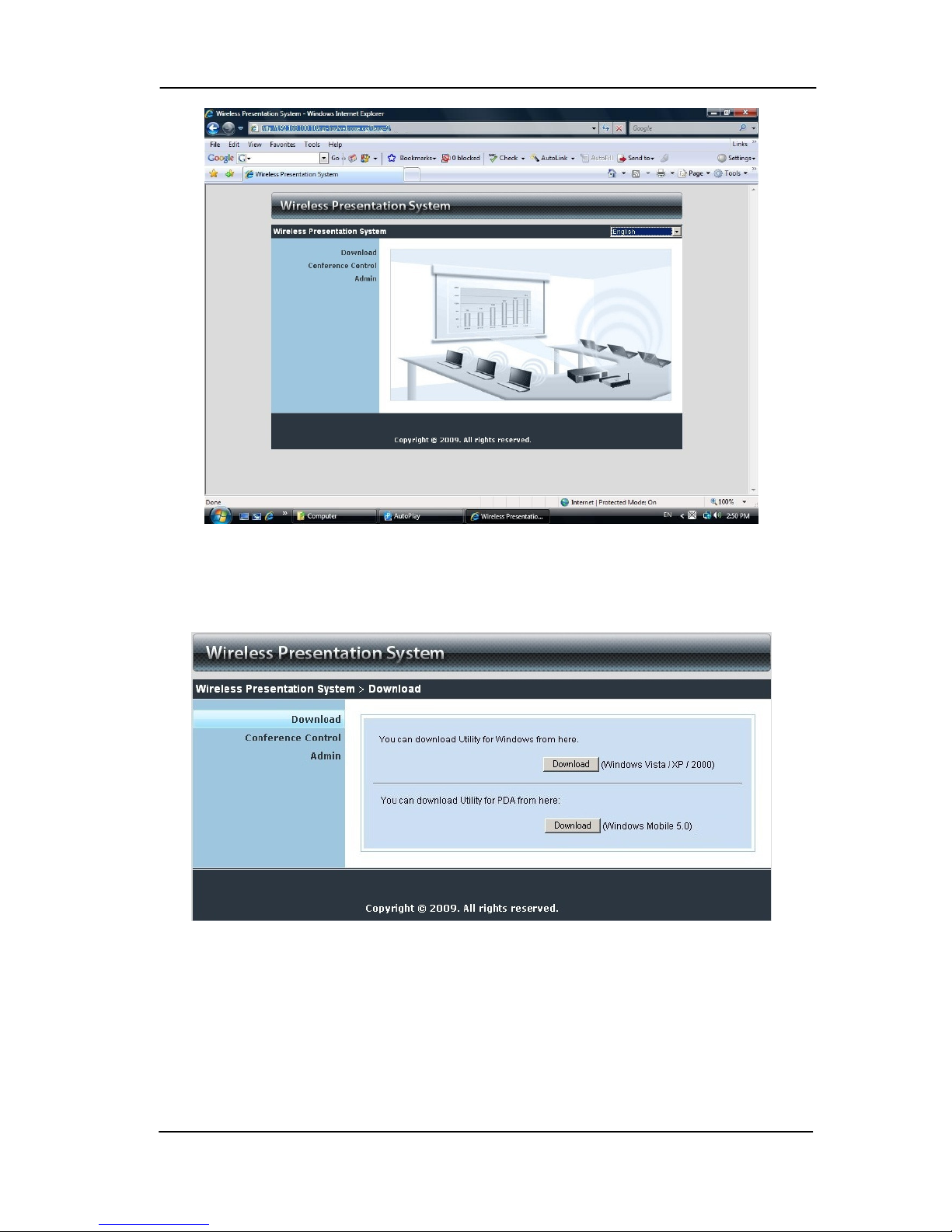
4) Open your browser and it will redirect to WPS main page automatically, or you
can enter the IP address to access the WPS web home page.
♦The default IP address of WPS is 192.168.100.10 or refers to the IP
address shown on the left corner of projector screen.
English Manual
7
5) Download the client software. Please select the” Windows Vista / XP/ 2000”
or ”Windows Mobile 5.0” and e ecute the installation program.
♦After installing the program, you will see the WPS shortcut on the PC
screen.

English Manual
8
6) Make sure your personal firewall allows WPS software to pass through.
7) Enter the LOGIN CODE and
♦You can see the login code on the projector screen
8) Click the “ lay” button to start projection!

English Manual
9
3.Windows Client Utility
3.1 Starting rogram
After you download WPS Windows program via web page successfully, then follow
below steps to start.
1) Click WPS icon to e ecute the program.
2) Program start to search for WPS bo automatically,
3) If WPS bo founded then “Login Code” dialog bo will be pop up on the PC
screen.
Searching for W S box
W S box is founded and enter login code to start.

English Manual
10
3.2 Login
1) After “Login Code” dialog bo shown, enter login code to start presentation.
2) You can see the login code shown on the projector screen.
3.3 Main User Interface
Screen
Projection Tab
Streaming
Tab Control Area for Screen
Projection Feature
Menu Area
Control Area for Streaming
Feature
Status Indicator
Indice
Altri manuali Lindy Server

Lindy
Lindy 32498 Manuale utente

Lindy
Lindy 32702 Manuale utente

Lindy
Lindy WPS-ZoomPro Manuale utente

Lindy
Lindy 20988 Manuale utente

Lindy
Lindy 42829 Manuale utente

Lindy
Lindy 32500 Manuale utente

Lindy
Lindy 32702 Manuale utente

Lindy
Lindy 42633 Manuale utente

Lindy
Lindy 42661 Manuale utente

Lindy
Lindy Personal Server 32454 Manuale utente


