
Lionel WiFi Layout Control System Manuale utente

78-1325-250
5/14
LCS PDI CABLES
use either connector
WiFi
6-81325
Lionel
WiFi
Owner's Manual

2
Congratulations!
Your layout has always been more than the sum of its parts. But until now, combining
those parts into a complete system could be a challenge. Lionel’s new Layout Control
System or “LCS,” fulfills the LEGACY promise of integrated locomotive and layout control.
The following Lionel marks are used throughout this Owner’s Manual and are protected under
law. All rights reserved.
Lionel®, LionChief™, LionChief Plus™, LEGACY™, FasTrack®,TrainMaster®, Odyssey®, RailSounds®,
CrewTalk™, TowerCom™, DynaChuff™, StationSounds™, Pullmor®, ElectroCoupler™, Magne-
Traction®, CAB-1®Remote Controller, American Flyer®, Lionel ZW®, ZW®, MagniVision®, TMCC®,
Lionelville®, Wireless Tether™, Powerhouse™, LionMaster®, Conventional Classics™, Postwar
Celebration Series™, TruRail™, PH-1 Powerhouse®, Powermaster®, Powerstation-Powerhouse®,
Accessory Motor Controller™, AMC™, Accessory Switch Controller™, ASC™, Action Recorder
Controller™, ARC™, Track Power Controller 300™, TPC 300™, Track Power Controller 400™, TPC
400™, Block Power Controller™, BPC™, Operating Track Controller™, OTC™, FatBoy™, Lionel
Lines®, Joshua Lionel Cowen Series™, Lockon®, TrainSounds™, MultiHorn™, MultiWhistle™,
Choo-Choo™, SensorTrack™
iPad is a registered trademark of Apple, Inc.
Table of Contents
What is Lionel’s Layout Control System?
How it works! 3
LCS WiFi Module 4
Installing Your First LCS Device
Installing Your First LCS Device 5
The LCS DB-9 Cable with Power Supply 5
Installing a new LCS system with a Legacy Base 6
Installing a new LCS system with a Base-1L 7
Installing LCS with Legacy AND TrainMaster Command Bases 8-9
Installing a new LCS system with NO Command Base 10
Installing additional LCS devices
Installing additional LCS devices 11
Configuring your LCS SER2
Configuring your LCS Device 12
Access Point Mode 13
Join to Network Mode 13
BASE/NO BASE 14
PDI LED 14
WIFI LED 14
Changing the WiFi Channel 14
Specifications of the LCS WiFi 15
Lionel Limited Warranty Policy & Service 16

3
What is Lionel’s Layout Control System?
LCS doesn’t replace your existing Lionel Legacy Control system. It adds to it! You can control your
layout from Lionel Cab Remote controllers or from smart devices like an Apple iPad and run
locomotives, operate track switches, accessories and lighting. Create automatic events to control
passing locomotives and other layout accessories or switches.
LCS is a modular system, with each product offering unique features. No single LCS product
will do everything and not every layout will require every type of LCS device. But a fully realized LCS
system will likely include the following:
• A Lionel Command Base (Legacy or Base-1L) for locomotive control
• LCS WiFi so you can control your layout from smart devices like an iPad®
• LCS ASC2, to operate switches, lighting and accessories
• LCS BPC2 for block power control
• LCS SensorTrack (one or more) which adds a new level of interactivity with compatible Lionel
Legacy and Vision locomotives
• LCS SER2 for computer control and use of existing Lionel serial devices like the TPC-300 and
TPC-400
How it works!
As you know, your Lionel Cab Remote sends commands to your Command Base. In turn,
the base controls your locomotives via a one-way communication link. LCS works in
parallel with your existing command base, adding a wired network of control modules. Spread
across your layout, these LCS modules operate switches, lighting, accessories and track power
blocks. LCS is bidirectional, meaning modules can send and receive commands.
And here’s where it all comes together: Since LCS can also send commands back through
the command base, LCS devices can operate your locomotives as well as your layout! For
example, a module like SensorTrack™ can make a loco blow a grade-crossing signal as it
passes. And the LCS WiFi module connects devices like an Apple iPad®to your layout so you
and your friends can easily operate switches, locos and more.
LCS WiFi
LCS SensorTrack
LCS SER2
LCS PDI cables connect modules
for bi-directional communication.
Command base controls locomotives,
one-way communication only
Figure 1. LCS doesn't replace your Lionel Command Base—it adds to it!

4
LCS WiFi Module
The LCS WiFi allows your smart devices to control your layout accessories and, in
conjunction with a Lionel command base, your locomotives.
• LCS Wi-Fi can create its own independent WiFi network or join an existing one.
• Up to 15 Wi-Fi devices can be connected at once.
• Each connected device requires software written specifically for the LCS system.
• Lionel’s LCS App is available as a free download for the iPad. In addition, Lionel’s
independent LCS partners are creating Apps and Software for LCS.
The LCS WiFi has an additional unique feature that allows it to support an LCS system that
does NOT include a Lionel Command Base. This would be an appropriate configuration for a
model railroad that does not use Lionel TMCC or Legacy locomotives. Examples of this include
a DCC layout or a strictly conventional/transformer operated layout. In this case, the LCS
system would be controlling switches, lighting and accessories, but not locomotives.
It is recommended that the LCS WiFi module occupy the first connection in the LCS chain
of LCS products.
LCS PDI CABLES
use either connector
WiFi
6-81325
Figure 2. LCS WiFi Module

5
Installing Your First LCS Device
Installing Your First LCS Device
The following section describes installation of a new LCS system. If you already have installed
your first LCS component, please skip ahead to the next section titled “Installing additional LCS
devices.”
When installing a new LCS system, the process you will follow depends on which (if any) Lionel
Command Base is to be connected to your LCS system. Following sections describe starting a new LCS
installation with a Legacy Base, a Base-L1 or without any command base.
The LCS DB-9 Cable with Power Supply
Every LCS system requires exactly one 6-81499 LCS DB-9 Cable with Power Supply. This special
cable has three connectors: (A) a DB-9, with a “pig-tail” cable-mount power supply connector
(C) and also a 10-foot cable with an “LCS PDI” connector at its end (B). See below:
The cable receives power from the included DC wall-pack (12VDC at 1A). Power for each LCS
device is supplied through the single LCS data cable. The LCS DB-9 Cable with Power Supply wall-
pack is capable of powering dozens and dozens of LCS devices, depending on type. An additional
power booster/cable extender is available for extremely large LCS installations.
Figure 3. The LCS DB-9 Cable with Power Supply (sold separately)
6
Installing a new LCS system with a Legacy Base
To install a new LCS system on a layout with a Legacy Command Base:
1. Turn off power to your layout and Legacy Base
2. Connect the DC wall-pack to the female cable-mount connector of the LCS DB-9 Cable.
3. Connect the DB-9 connector of the LCS DB-9 Cable to your Legacy Command Base.
4. Connect the LCS PDI cable end of the LCS DB-9 Cable to either connector on your LCS device,
such as an LCS WiFi or LCS SensorTrack or any other Layout Control System product.
5. Restore power to your layout and Legacy Base.
6. Plug in the LCS wall-pack power supply.
If using a Legacy command base, it must have software rev 1.52 or higher
installed.
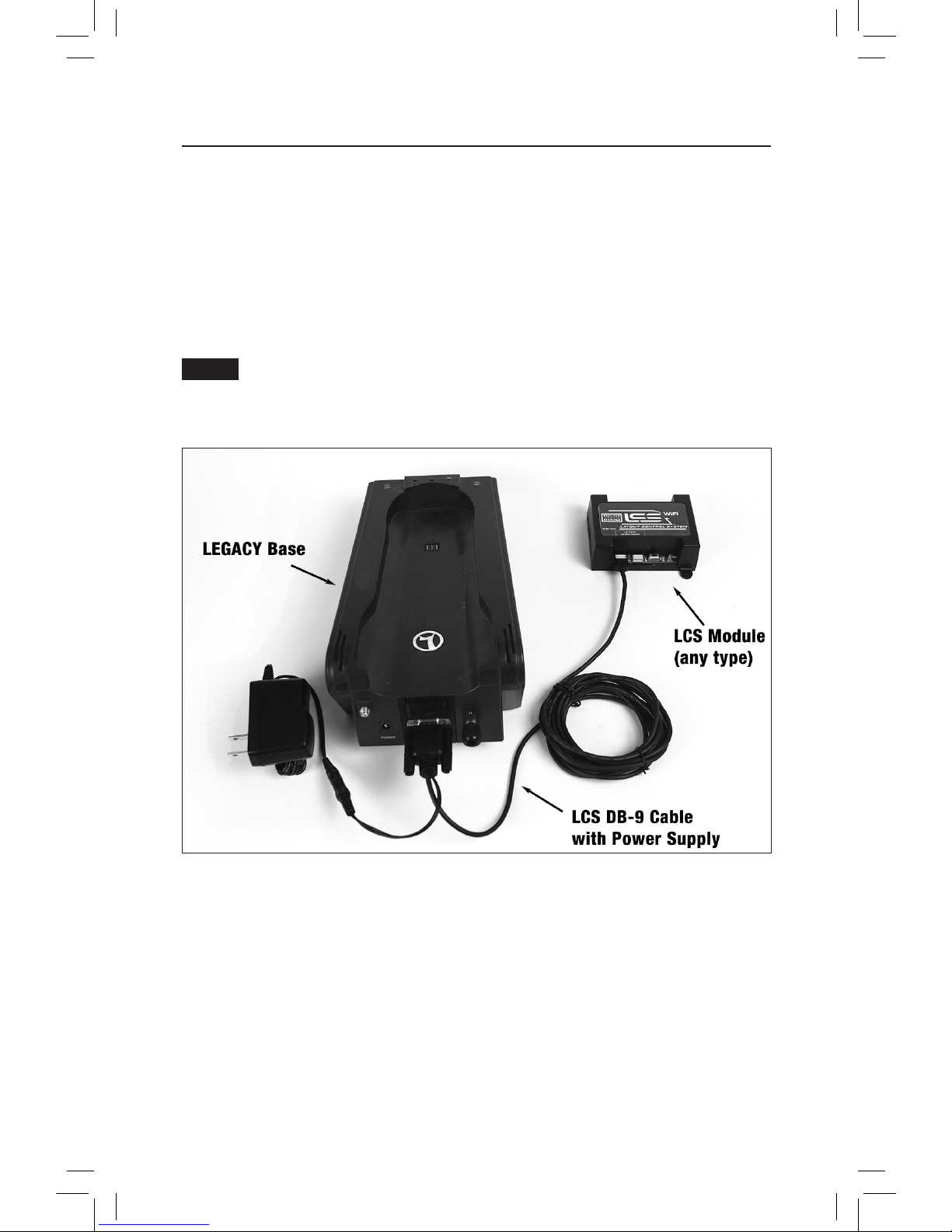
Your system should resemble the figure below.
Once connected and powered-up, the yellow LED on the Legacy Base will blink once every second.
With this setup, you can control Lionel locomotives and Layout Control System products using a
Legacy Remote(s) and optionally CAB-1L remote(s).
If you have additional LCS devices to install, see “Installing additional LCS devices.” If not, skip
ahead to the next section of this manual, “Configuring your LCS Device.”
Figure 4. Installing a new LCS system with a LEGACY Base
Note!

7
Installing a new LCS system with a Base-1L
To install a new LCS system on a layout with a Base-1L Command Base:
1. Turn off power to your layout and Base-1L
2. Connect the DC wall-pack to the female cable-mount connector of the LCS DB-9 Cable.
3. Connect the DB 9 connector of the LCS DB-9 Cable to your Base-1L.
4. Connect the LCS PDI cable end of the LCS DB-9 Cable to either connector on your LCS device,
such as an LCS WiFi or LCS SensorTrack or any other Layout Control System product.
5. Restore power to your layout and Base-1L.
6. Plug in the LCS wall-pack power supply.
Your system should resemble the figure below.
Once connected and powered-up, the red LED on the Base-1L will blink once every second. With
this setup, you can control Lionel locomotives and Layout Control System products using a CAB-1L
remote(s).
If you have additional LCS devices to install, see “Installing additional LCS devices.” If not, skip
ahead to the next section of this manual, “Configuring your LCS Device.”
Figure 5. Installing a new LCS system with a Base-1L

8
Installing LCS with Legacy AND TrainMaster Command Bases
The following instructions apply ONLY if you are using one or more original CAB-1 remotes with
a Legacy command base. It is not necessary to follow these instructions to use the CAB-1L remote
with a Legacy command base.
In order to complete this installation, you will need a CAB-1 remote, an original TMCC
Trainmaster command base, a Legacy Command Base with Legacy CAB-2 remote and the Legacy
serial Y cable (included with the Legacy command base).
This is the ONLY supported application for the Legacy Y cable. The “Command base”
end of the Legacy Serial Y cable cannot be directly connected to accessory other than the
original TMCC TrainMaster command base.
To install a new LCS system on a layout with a Legacy Command Base, an original TMCC
Command Base and a Legacy Serial Y Cable:
1. Turn off power to your layout, Legacy Base and TMCC TrainMaster command base.
2. Connect the DC wall-pack to the female cable-mount connector of the LCS DB-9 Cable.
3. Connect the DB-9 connector of the Legacy Serial Y cable to your Legacy Command Base.
4. Connect the “Command Base” end of the Legacy Y cable to the DB-9 connector of your TMCC
Trainmaster Command Base.
5. Connect the DB-9 end of the LCS DB-9 Cable to the “Serial Comm” connector of the Legacy Y
cable.
6. Connect the LCS PDI cable end of the LCS DB-9 Cable the either connector on your LCS device,
such as an LCS WiFi or LCS SensorTrack or any other Layout Control System product.
7. Restore power to your layout, Legacy Base and TMCC TrainMaster command base.
8. Plug in the LCS wall-pack power supply.
If using a Legacy command base, it must have software rev 1.52 or higher installed.
Note!
Note!

9
Installing LCS with Legacy AND TrainMaster Command Bases
(continued)
Your system should resemble the figure below.
Once connected and powered-up, the yellow LED on the Legacy Base will blink once every second.
With this setup, you can control Lionel locomotives and Layout Control System products using any
combination of LEGACY Remotes, CAB-1L remotes and original CAB-1 remotes.
If you have additional LCS devices to install, see “Installing additional LCS devices”. If not, skip
ahead to the next section of this manual, “Configuring your LCS Device.”
Figure 6. Installing LCS with Legacy AND TrainMaster Command Bases

10
Installing a new LCS system with NO Command Base
The Layout Control System can be used without a Lionel Command base. This would be
appropriate for a layout which only uses “conventional” or “transformer-controlled” locomotives
or a different type of locomotive control system such as DCC. An LCS WiFi is required, as are one other
LCS module (such as ASC2 or BPC2).
To install a new LCS system on a layout that does NOT include Lionel Command Base:
1. Connect the DC wall-pack to the female cable-mount connector of the LCS DB-9 Cable.
2. Connect the LCS PDI cable end of the LCS DB-9 Cable the either connector on your LCS WiFi.
3. Set the Base/No Base switch to “NO BASE.”
4. Leave the DB-9 connector of the LCS DB-9 Cable unconnected.
5. Plug in the LCS wall-pack power supply.
With this setup, you can control other Layout Control System products using compatible software
on smart devices connected via WiFi or from a computer using a wired serial connected via an
LCS SER2. Since this configuration does not include a command base, you will not be able to use
Lionel Cab Remotes, command-controlled locomotives or wireless command controlled switches or
accessories in conjunction with this LCS system.
If you have additional LCS devices to install, see “Installing additional LCS devices”. If not, skip
ahead to the next section of this manual, “Configuring your LCS Device.”
Questo manuale è adatto per i seguenti modelli
1
Indice
Altri manuali Lionel Sistema di controllo


