QPU-L7 with DTC
Server Quick Start Card
Thank you for purchasing the Quanergy Processing Unit-L7 (QPU-L7™) host computer for QORTEX DTC™
(formerly Q-Guard™) server software. This card summarizes how to use this system with Quanergy LiDAR
sensors, including M8™-Core, -Plus, and -Ultra models (Rev D and up) and M8 PoE+ (Rev A and up).
Overview
The QPU-L7 is a Linux®-based computer with QORTEX DTC server software pre-installed for sensor
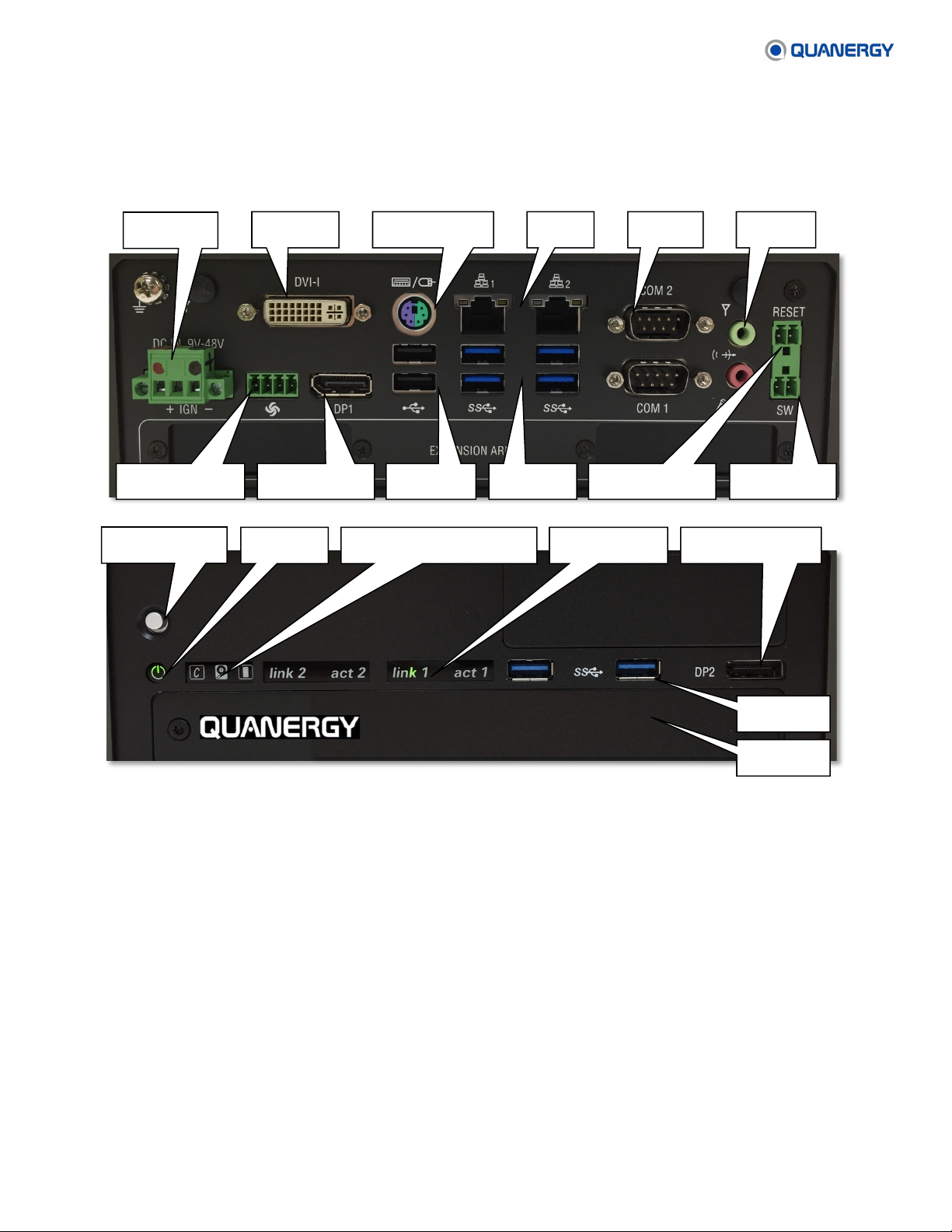
operation, data collection, and surveillance. The QPU-L7 can accept inputs from up to six M8 sensors.
The QPU-L7’s Ethernet network capacity is sufficient to support the raw data stream from sensors.
QORTEX DTC is a LiDAR-based 3D perception and volumetric sensing solution that enables the detection,
tracking, and classification (DTC) of human objects for security, people movement, and analytics.
The QORTEX DTC server receives input from the M8 sensors and publishes output to the user’s network
infrastructure. That output is consumed by a QORTEX DTC client and/or third-party application.
The Quanergy-installed server on the QPU-L7 is ready to run as soon as you turn it on and activate a
license. (On the same network, the client is user-installed on a separate Linux machine as explained in
the QORTEX DTC 1.xUser Guide, and M8 sensors are installed as explained in the M8 Sensor User Guide or M8 PoE+
Sensor User Guide.Referenced documents are listed below.)
Specifications
Intel® i7-6700TE up to 3.4 GHz 4-core processor
Primary drive: 64 GB for OS and applications
Secondary drive external bay
Video, standard Intel chip set capability
USB 3.0 (2x) for high speed devices such as extra memory
USB 2.0 (2x) for user input devices
LAN 10/100/1000 RJ45 (x2)
Documents
For important details, refer to https://quanergy.desk.com/customer/portal/articles/2923379 and:
• Cincoze DS-1100 Series User’s Manual — http://www.cincoze.com/data/files/201708/Manual_DS-1100_R1.3_20161107004.pdf
• M8 Sensor User Guide — https://quanergy.desk.com/customer/portal/articles/2687038
• M8 Sensor Quick Start Card — https://quanergy.desk.com/customer/portal/articles/2687032
• M8 PoE+ Sensor User Guide — https://quanergy.desk.com/customer/portal/articles/2959430
• M8 PoE+ Sensor Quick Start Card — https://quanergy.desk.com/customer/portal/articles/2959431
• QORTEX DTC 1.x User Guide — https://quanergy.desk.com/customer/portal/articles/2755121
• QORTEX DTC 1.x Quick Start Card — https://quanergy.desk.com/customer/portal/articles/2755133
• QPU-L7 with QORTEX DTC Server Quick Start Card — https://quanergy.desk.com/customer/portal/articles/2920478
• Q-View User Guide — https://quanergy.desk.com/customer/portal/articles/2717074
• Q-View Quick Start Card — https://quanergy.desk.com/customer/portal/articles/2748632