6. Remote control
①Press the key to open the power of the matrix
or set it as a standby mode.
②Press the DISPLAY A, B,C, D, E, F, G or H button
to select output firstly, then corresponding press the
SOURCE 1, 2, 3, 4, 5, 6, 7 or 8 button to select input
source.
③Press the DISPLAY A, B, C, D, E, F, G or H button
to select output firstly, then corresponding press the
left or the right button to select the last or the next
input source.
④Press the‘ALL’key to select all output firstly, then
corresponding select only one input source. At this
moment, The left and the right keys have no function.
LAN
RS-232
CONTROL
5
This port is the link for TCP/IP control, connect to an
active Ethernet link with an RJ45 terminated cable.
Connect to a PC or control system with phoenix jack
for transmission of RS-232 commands.
6
7 HDMI INPUT
Connect to the HDMI input source devices such
as a DVD player or a Set-top Box with HDMI
cable.
8HDMI/HDBaseT
OUTPUT
The HDMI OUTPUT connect to HDMI equipped
TVs or monitors and the HDBT OUTPUT connect
to the HDBT Receiver.
9AC POWER INPUT Connect to AC power with AC power cable.
GND Connect the Housing to ground.
4/12
4 Audio OUTPUT
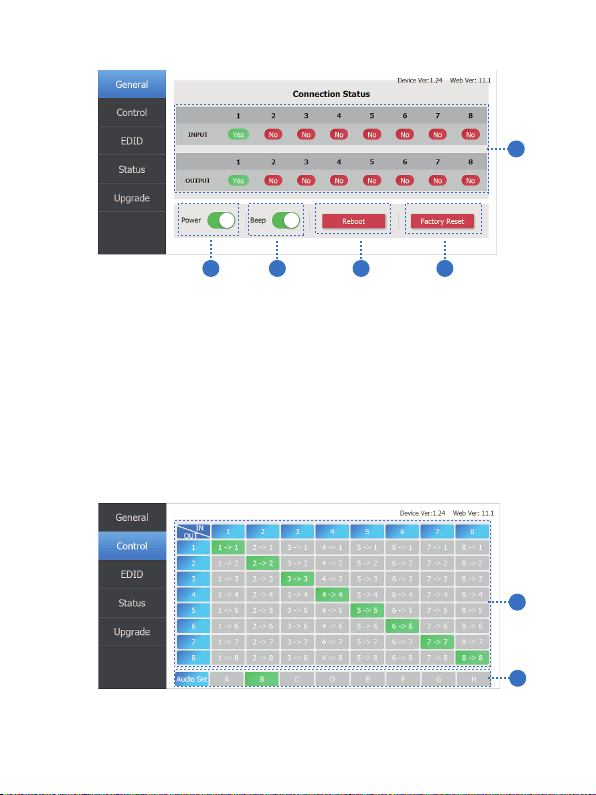
De-embedded audio output ports. By default, it
outputs HDMI out A audio. But user can select
other output ports audio via Web GUI.
NOTE: Optical port can support PCM and compressed
audio formats, but L/R port only supports PCM audio.
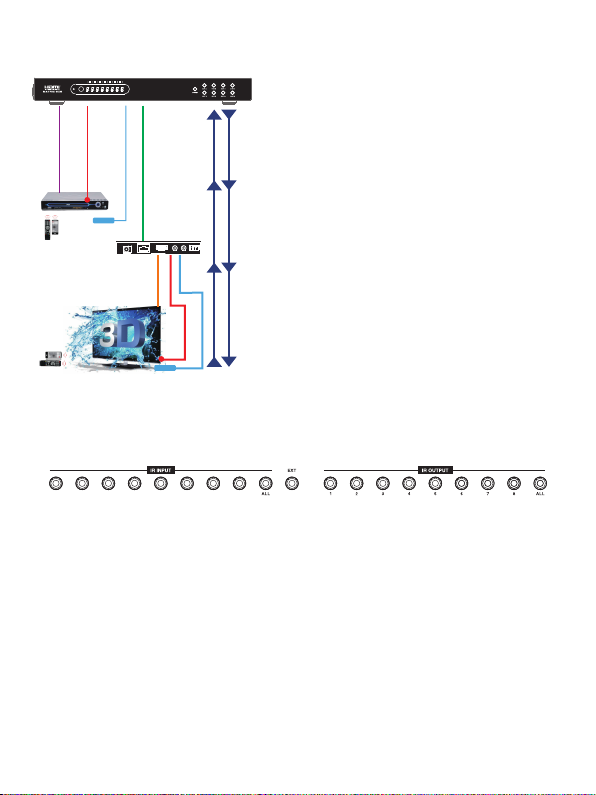
3IR OUTPUT IR OUTPUT interface. For further details, please
refer to the IR control system introduction.
A
B
C
D
DISPLAY
1
A
B
C
D
SOURCE
DISPLAY
1 2 3 4
5 6 7 8
A B C D
E F G H
ALL
1
2
2
3
4