Smartlink Multimedia Conference Server Manuale utente

SMARTLINK
MULTIMEDIA CONFERENCE SERVER
RELEASE 5.1
INSTALLATION GUIDE


Please Read This Information
© Copyright 1997: VTEL Corporation
All rights reserved.
Printed in the U.S.A.
VTEL Corporation
108 Wild Basin Road
Austin, TX 78746
U.S.A.
VTEL - US Headquarters
800 856 8835
+1 610 239 5555
VTEL Europe LTD
+44 (0)118 956 0915
VTEL Part Number: 601-9008-04
THE INFORMATION CONTAINED IN THIS
DOCUMENT IS SUBJECT TO CHANGE
WITHOUT NOTICE. VTEL CORPORATION
ASSUMES NO RESPONSIBILITY FOR
TECHNICAL OR EDITORIAL ERRORS OR
OMISSIONS THAT MAY APPEAR IN THIS
DOCUMENT OR FOR THE USE OF THIS
MATERIAL; NORDOESVTELCORPORATION
MAKE ANY COMMITMENT TO UPDATE THE
INFORMATION CONTAINED IN THIS
DOCUMENT.
This document contains proprietary information
which is protected by copyright. All rights
reserved. No part of this document may be
photocopied or reproduced in any form without
the prior written consent of VTEL Corporation.
VTEL and the VTEL logo are registered
trademarks, and SmartVideoconferencing and
SmartLink are trademarks of VTEL Corporation.
All other brand or product names mentioned in
this book are trademarks or registered
trademarks of their respective companies or
organizations.
FCC Notice
This equipment has been tested and found to
comply with the limits for a Class A digital
device, pursuant to Part 15 of the FCC Rules.
Theselimitsare designedto providereasonable
protection against harmful interference when
the equipment is operated in commercial
environments.
This equipment generates, uses, and can
radiate radio frequency energy and, if not
installed, operated, and maintained in
accordance with VTEL guides and manuals,
may cause harmful interference to radio
communications.
Operation of this equipment in a residential area
is likely to cause harmful interference in which
case the user will be required to correct the
interference at his/her own expense.
Warning
Changes or modifications to this unit not
expressly approved by the party responsible for
compliance could void your authority to operate
the equipment.
Use of cables other than those provided by the
manufacturer may cause noncompliance with
the FCC Rules.
Notice to Canadian Users
This digital apparatus does not exceed the
Class A limits for radio noise emissions from
digital apparatus set out in the Radio
Interference Regulations of the Canadian
Department of Communications.
Le présent appareil numérique n’émêt pas de
bruits radioélectriques dépassant les limites
applicables aux appareils numériques de la
class A prescrites dans le Réglement sur le
brouillageradioélectriqueédictéparleministère
des Communications du Canada.
Printed on Recycled Paper

Bescheinigung des
Herstellers/Importeurs
Hiermit wird bescheinigt, daß SmartLink
Multimedia Conference Server in
Übereinstimmung mit den Bestimmungen der
BMPT-AmtsblVfg 243/1991 funkentstört ist. Der
vorschriftsmäßige Betrieb mancher Geräte
(z. B. Meßsender) kann allerdings gewissen
Einschränkungen unterliegen. Beachten Sie
deshalb die Hinweise in der Bedienungs-
anleitung.
Dem Zentralamt für Zulassungen im
Fernmeldewesen wurde das Inverkehrbringen
dieses Gerätes angezeigt und die Berechtigung
zur Überprüfung der SmartLink auf die
Einhaltung der Bestimmungen eingeräumt.
Notice to UK Users
TheSmartLinkMultimediaConferenceServeris
approved for indirect connection to the public
telecommunications network in the UK under
approval number NS/G/1234/J/100003.
Users of the SmartLink Multimedia Conference
Server in the UK must pay close attention to the
following statements. Failure to do so may
invalidate any approvals for indirect connection
to the public telecommunications network.
1. The SmartLink Multimedia Conference
Server is approved for indirect connection to
the public telecommunications network in the
UK under general approval number
NS/G/1234/J/100003.
2. Direct connection to the public
telecommunications network is not approved
and any such connection must be through a
product approved for such a connection.
3. The SmartLink Multimedia Conference
Server may be configured with an E1/ISDN
module
(BABT approval nS/3941/15/N/603327) for
direct connection using DASS-2 signaling to
exchange lines in the UK public
telecommunications network.
The E1/ISDN module is intended to be
accessible by authorized personnel only, and
must only be installed by authorized
personnel in such a way that it meets the
requirementsforuserandnetworkprotection.
Additionally, the E1/ISDN module, as fitted in
the SmartLink Multimedia Conference
Server, shall meet the performance
requirements of the Network Code of
Practice.
4. The power requirements for the E1/ISDN
module are + 5 volts DC and 2 amps
maximum. Users must ensure that
installation of network interface cards do not
cause the maximum voltages and currents
required to drive the interface to exceed the
available supply from the SmartLink
Multimedia Conference Server power supply.
Notice to Pan-European Users
The single- and dual-port E1/ISDN modules
when using the ETS300 protocol meet the
CTR-5 requirements of standard 90/002 S/R2
with the following BABT approval certificate
number: BABT/95/2227, mark CE 168_X_.


v
Contents
About This Guide
Before You Begin ix
Installation Steps x
Conventions and Symbols xi
Chapter 1
Preparing for Installation
Unpacking 1–1
Before You Unpack 1–2
When You Unpack 1–2
Taking Inventory 1–3
Verifying Contents 1–3
Identifying Main Components 1–4
Shipped Components 1–4
User-Supplied Components 1–6
Identifying Cables 1–9
Identifying Connection Locations 1–11
SmartLink 1000 1–11
SmartLink 2000 1–13
Placing Components 1–15

Contents
vi
Chapter 2
Attaching Cables and Powering On
Attaching the Monitor and Keyboard to the MCS 2–1
Attaching an MCS Workstation 2–2
Attaching Cables to Modules 2–4
AIU 2–5
BRI 2–6
Dedicated E1 2–7
E1/ISDN 2–8
Aculab E1/ISDN 2–8
Promptus E1/ISDN 2–11
Ethernet Adapter 2–12
HSD 2–13
RS-232 2–14
RS-366 2–15
T1/ISDN 2–16
Powering On the MCS 2–18
Chapter 3
Installing and Configuring Workstation Software
Installing the MCS Workstation Software 3–2
Starting the MCS Workstation Software 3–3
Configuring the MCS Workstation Software 3–4
Connecting to the MCS and Setting the Time 3–8
Hanging Up the Connection to an MCS 3–12
Stopping the MCS Workstation Software 3–12

Contents
vii
Appendix A
Installation Choices
Relocating the MCS A–1
Changing MCS-to-Workstation Connections A–2
Using a Direct Connection A–4
Using a Dialed Connection A–5
Using a TCP/IP Connection A–6
Attaching a Mouse to the MCS A–7
Creating Your Own Account A–8
Working with Workstation Configuration Files A–8
Learning About Workstation Configuration Files A–8
MCS Connection Settings A–11
Workstation Settings A–13
Closing the Current File A–15
Creating a New File A–16
Opening a File A–17
Appendix B
Specifications
Electrical Specifications B–2
Environmental Specifications B–3
Physical Specifications B–4

Contents
viii
Appendix C
Cables
AIU C–2
BRI C–3
COM1 C–5
25-Pin-to-25-Pin (COM2) C–6
Dedicated E1 C–7
E1/ISDN C–9
Aculab E1/ISDN C–9
Single- and Dual-Interface D-Shell Cable C–9
Single- and Dual-Interface BNC Cable C–11
Promptus E1/ISDN C–12
Ethernet Adapter C–14
J1/ISDN C–16
RS-232 C–17
RS-366 C–19
RS-449 C–21
T1/ISDN C–24
V.35 C–26
X.21 C–29
Cable Summary C–32
Index

ix
About This Guide
This guide provides the procedures you need to install a
SmartLink Multimedia Conference Server (MCS).
To use this guide you should have experience with
installing and configuring electrical and
telecommunication equipment. You should also know the
basics of working in a Microsoft Windowsenvironment.
Before You Begin
Before you begin the procedures in this guide, skim
through Chapters 1 through 3 to understand the order of
installing a new MCS. After you set up your initial
installation, you can customize the installation using the
procedures in Appendix A.
When you finish installing the MCS, refer to the
SmartLink Multimedia Conference Server
Administration Guide to learn about configuring
hardware modules and entering site and conference
information.

About This Guide
x
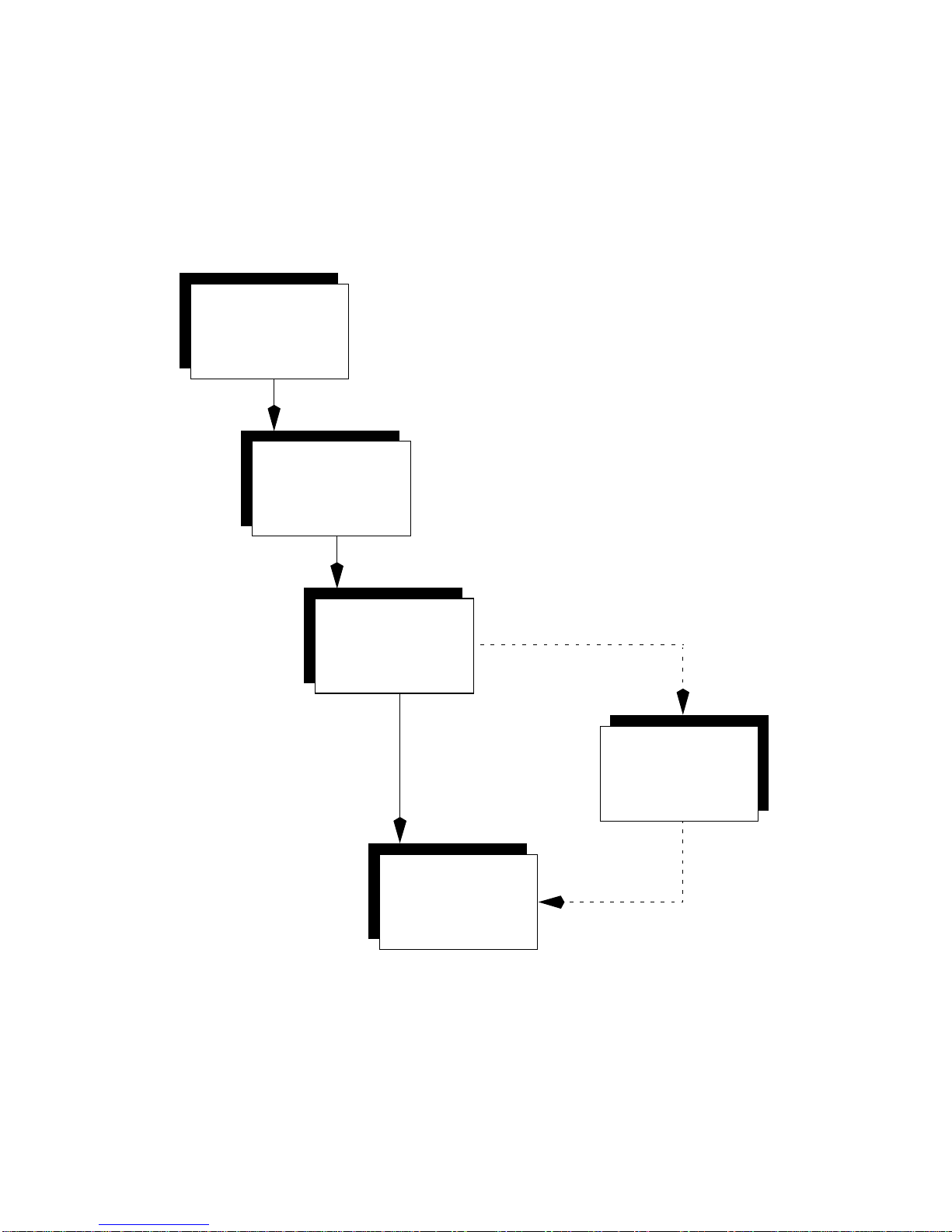
Installation Steps
Unpack
shipment
Customize
installation
Set up MCS
Workstation
Attach
cables
Configure
MCS software
(
Administration
Guide
)
Optional
Indice