Weight Watchers POINTS Manuale di istruzioni

Step your
way to
success
Pedometer
®
Pedometer
Questions
& Answers

Contents
Page
How do I set the time on my
POINTS
Pedometer? 6
I don’t want to use Imperial measurements, how do I change to Metric? 7
How do I set my stride length? 8
How do I work out my exact stride length? 10
How do I enter my weight into my
POINTS
Pedometer? 11
My
POINTS
Pedometer doesn’t appear to be counting my steps accurately? 12
I can’t open the security clip, to attach the Pedometer to my jumper/trousers? 12
How do I earn activity
POINTS
values? 13
Why is Healthy appearing on the screen and why am I not earning activity
POINTS
values? 14
How many steps do I need to do before I earn activity
POINTS
values? 15
I want to reset my steps/distance/activity
POINTS
values for the day? 16
What happens when I want to start a new day? 17
How do I review the steps/distance/activity
POINTS
values from previous days? 18
How do I use the stopwatch? 19
How do I change the battery? 21
My question isn’t listed above? 22
My question still hasn’t been answered? 23

You’ve just taken one of your first steps to boosting your
weight loss.
By purchasing your
POINTS
Pedometer, you’ve already, you’ve already
indicated that you’re interested in reaching your goal and
becoming more active.
This
POINTS
Pedometer is designed to record the activity
POINTS
values you earn as well as the steps and thevalues you earn as well as the steps and the
distance you walk each day.
Your information will be saved for up to one week so that
you can monitor your progress.
Set up your
POINTS
Pedometer before use, to
personalise it to you.
Clip your
POINTS
Pedometer securely to your
waistband (see page 14).
Store your
POINTS
Pedometer in a clean dry place
Immerse your
POINTS
Pedometer in water or
it will break, and this will not be covered by the
Guarantee.
Drop or step on your
POINTS
Pedometer.
Use solvents to clean your
POINTS
Pedometer
Do
Don’t
Important Information
3
Remove the battery tab from your
POINTS
Pedometer byby
pulling the tab outwards. This will automatically begin the
set up. The first screen that will appear will be the TIME
screen.
Before using your
POINTS
Pedometer for the first time,for the first time,
you will need to set it up so that it is personalised to you
by following the instructions below.

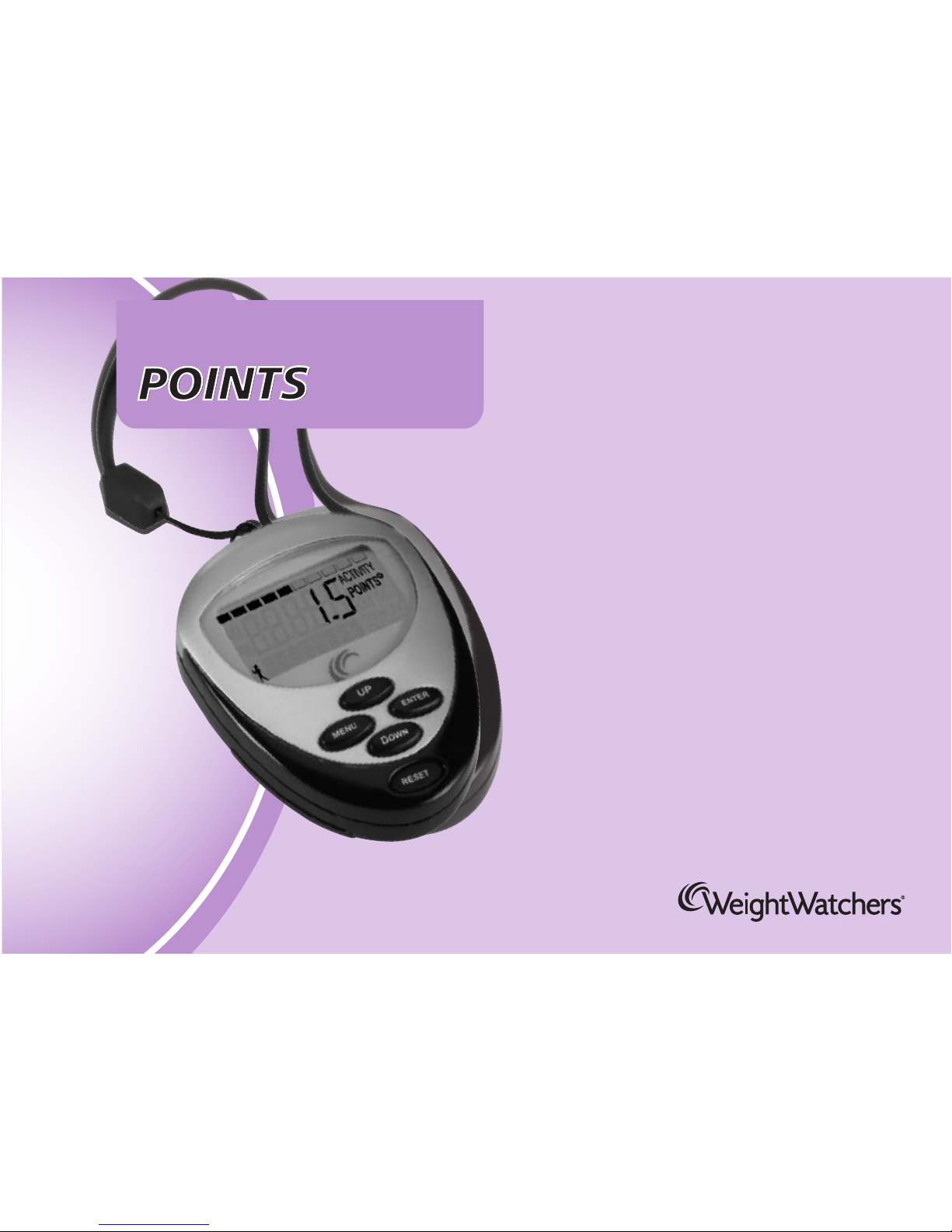
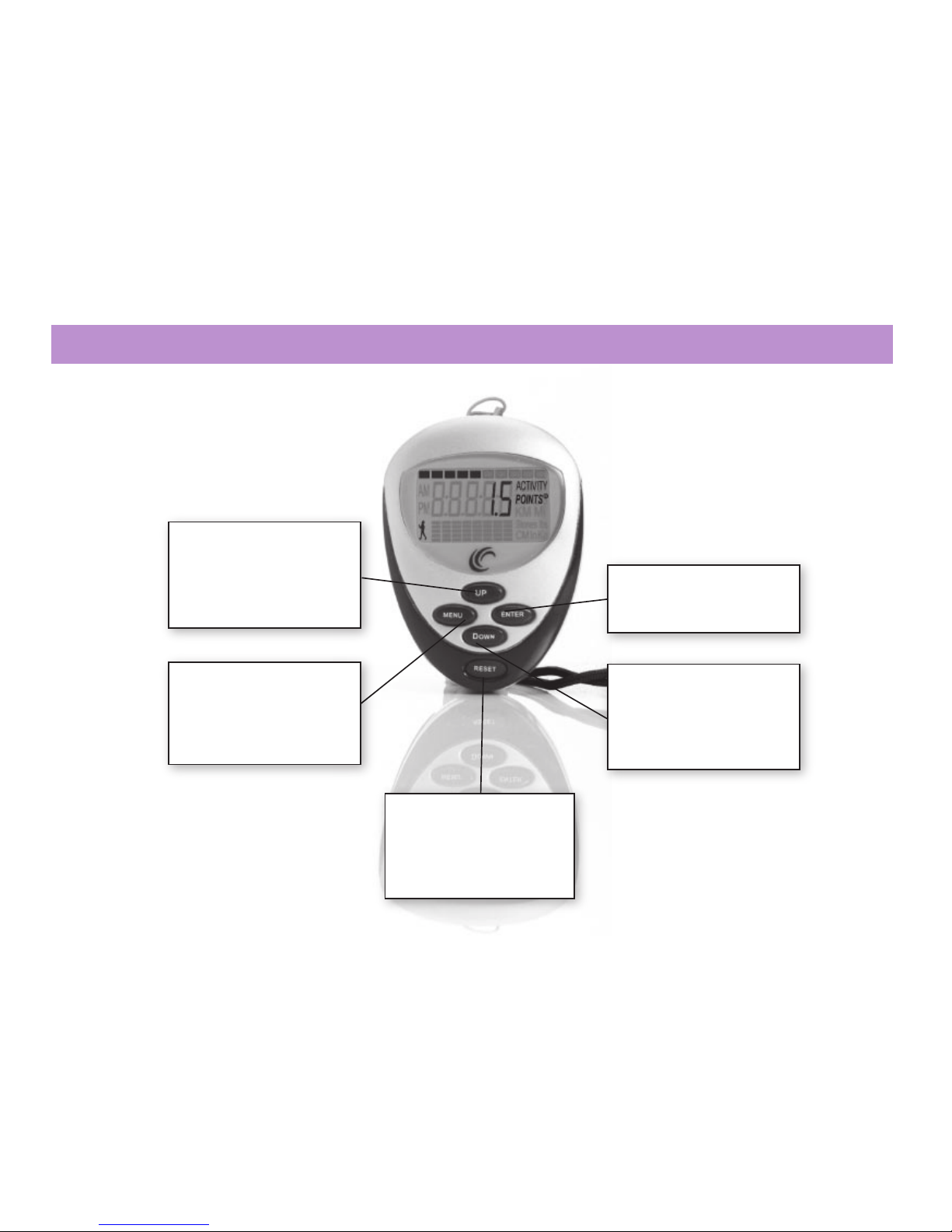
RESET = Press this key in
any screen exept stopwatch
to clear the steps, distance
and activity
POINTS
values
for the current day.
MENU = Press this key
to move you to a different
screen on your
POINTS
Pedometer (detailed on
page 5)
UP = Press this to scroll up
through numbers or options.
Press and hold down this key
to scroll at speed through
numbers.
DOWN = Press this to scroll
down through numbers or
options. Press and hold down
this key to scroll at speed
through numbers.
ENTER =When changing
information press ENTER to
confirm your choice.
Getting to know your POINTS Pedometer
4

The MENU key
Weight Watchers POINTS Pedometer is part of the Weight Watchers POINTS Weight-loss system and is designed for members of Weight Watchers soley for their personal use
in managing their weight loss. Any other use is prohibited. ©Weight Watchers UK Ltd 2006. All rights reserved. WEIGHT WATCHERS and POINTS are the registered trademarks
Weight Watchers International Inc.
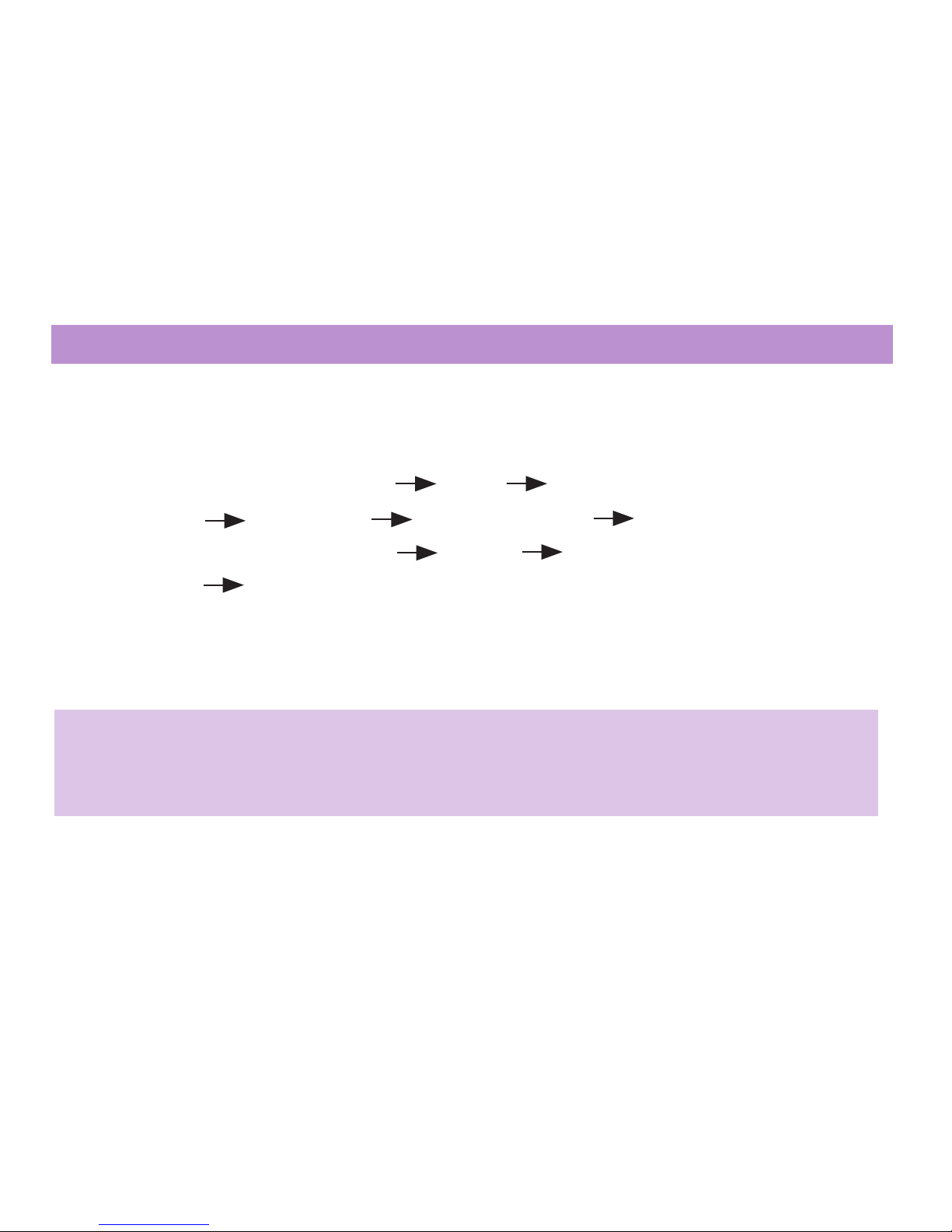
Each press of the MENU key will take you to view one of
the following screens:
ACTIVITY
POINTS
TIME STEPS
DISTANCE STOP WATCH
IMPERIAL/METRIC STRIDE WEIGHT
REVIEW.
For Example: To view
”STEPS”
press
MENU
twice from the
“
ACTIVITY
POINTS
”
screen.
“HEALTHY”
Before you can start to earn activity
POINTS
values you must first reach a healthy level of activity. This means that you will earn
activity
POINTS
values for walking over and above your normal level of activity.
5

Setting the time
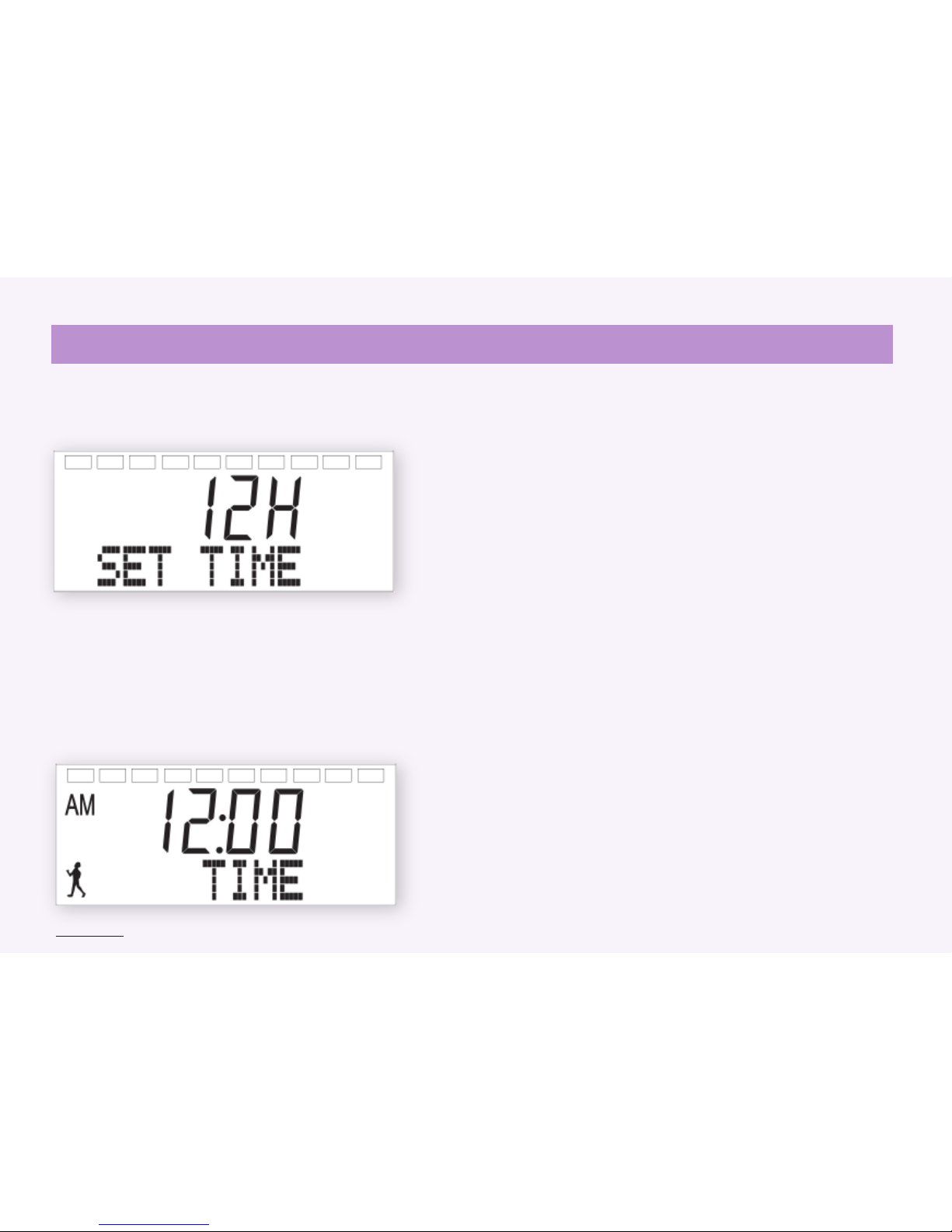
1. Press and hold ENTER for 3 seconds until the screen displays “SET
TIME”.
2. Press UP or DOWN to switch between 12 hour clock and 24 hour
clock.
3. Press ENTER to confirm your selection.
4. “12:00” will display on the screen. The hours on the screen will
be flashing, and if setting up in 12 hour clock AM will also appear
on screen.
5. Use the UP or DOWN keys to change the hours and press ENTER
when the hour you want is showing.
6. Use the UP or DOWN keys to adjust the minutes and press
ENTER when the minutes you want are showing.
7. “AM” will flash if you are setting up in 12 hour clock.
8. Use the UP or DOWN keys to switch between “AM” and “PM”.
9. Press ENTER to confirm “AM” or “PM” and your
POINTS
Pedometer will return to the time screen.
6
Back to top

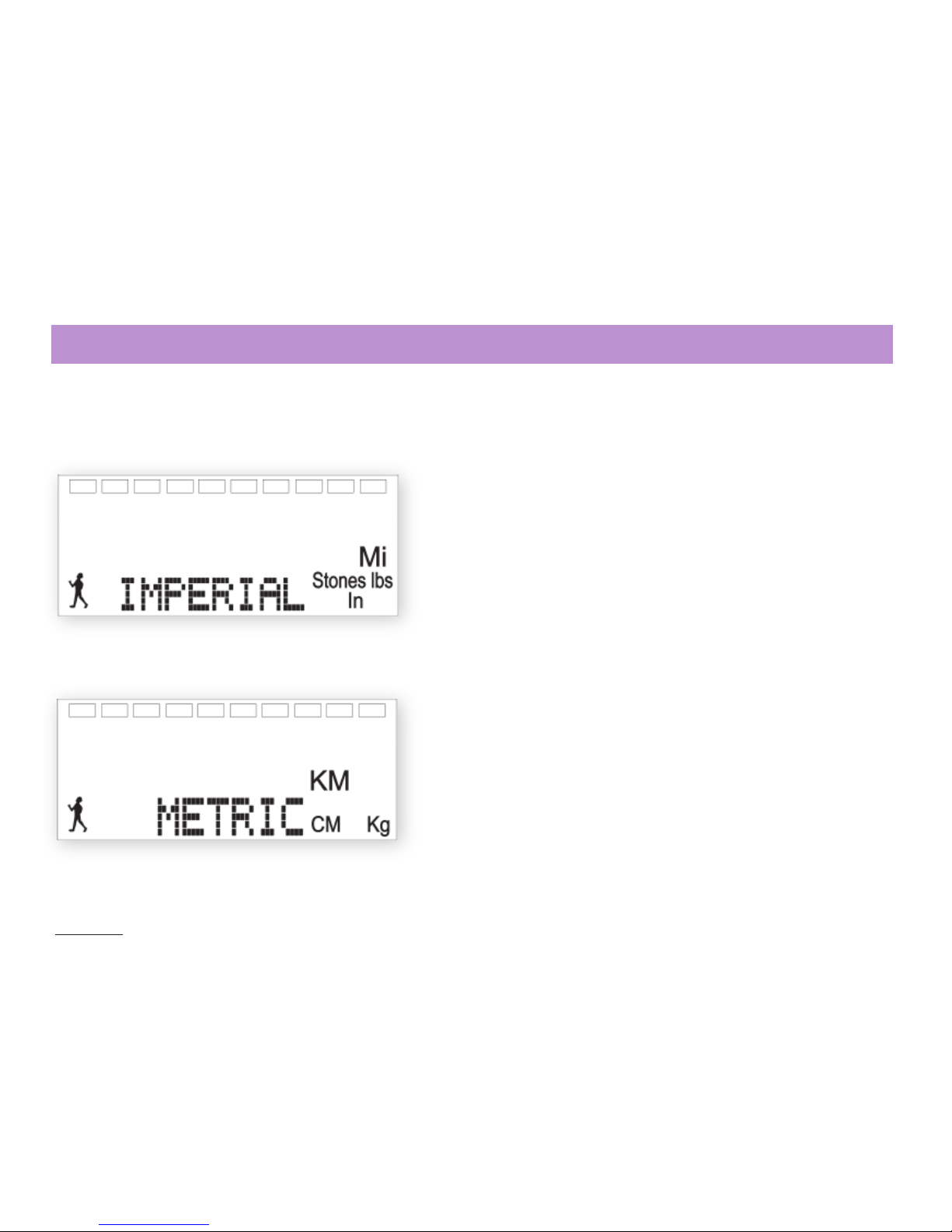
1. Press MENU four times from the time screen to get to
the “IMPERIAL/METRIC” screen.
2. “IMPERIAL” will automatically display on the screen.
3. To change the current setting to “METRIC”, press and
hold ENTER for 3 seconds.
4. Use the UP or DOWN keys to switch between
“IMPERIAL” and “METRIC”.
5. Press ENTER to confirm your choice.
N.B. Once you have selected IMPERIAL or METRIC, your
POINTS
Pedometer will automatically default to the setting
chosen throughout the set up process. We recommend that you
measure everything for one week in either imperial or metric.
When you change you will lose all saved information.
Choosing imperial or metric measurements
7
Back to top

1. Press MENU once from the “IMPERIAL/METRIC” screen
to set your “STRIDE”.
2. To set your stride length, press and hold ENTER for 3
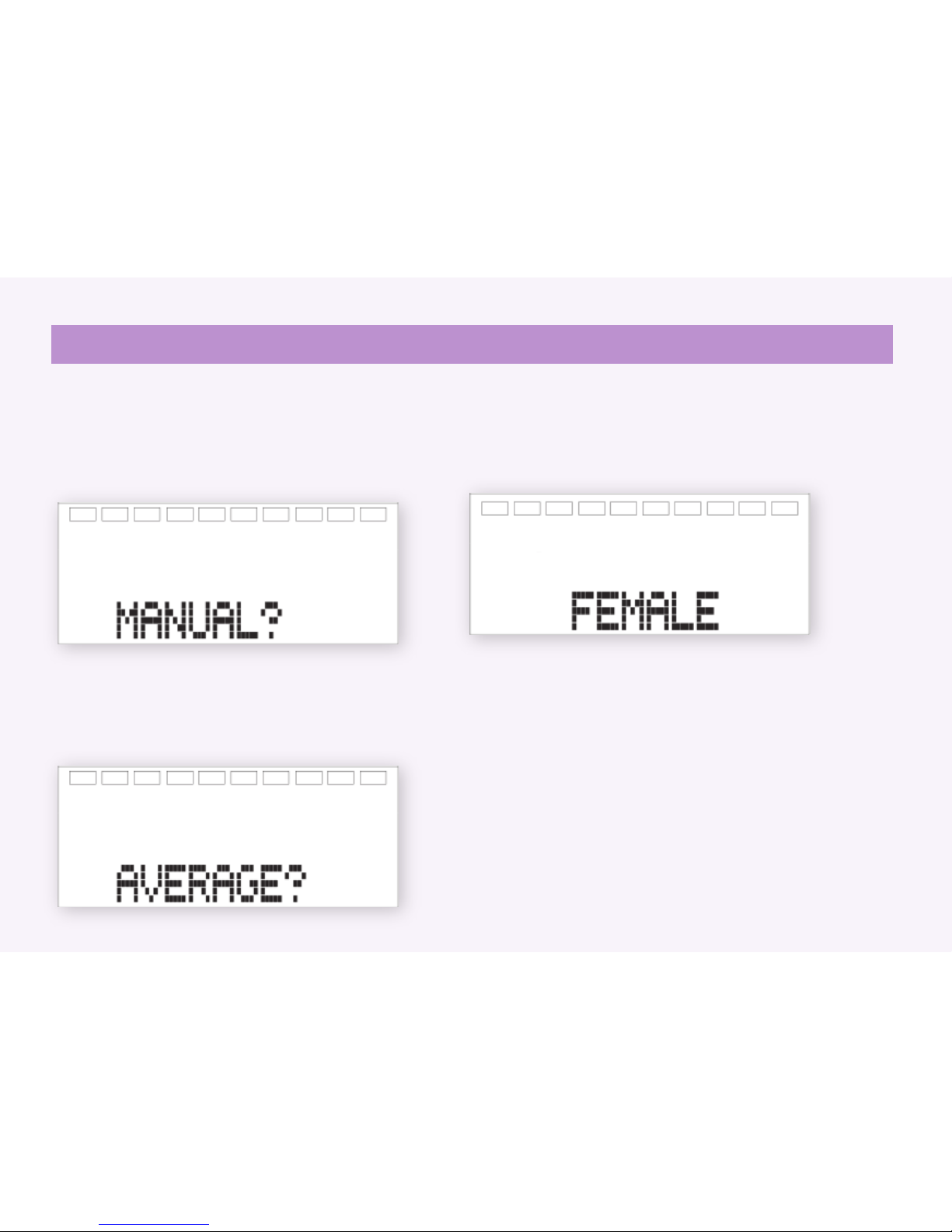
seconds until the screen displays “MANUAL?”.
Setting your stride length
If you want to enter your actual stride length, press
ENTER. This will enable you to get a more accurate
reading from your
POINTS
Pedometer. If you want to use
the average stride length, press DOWN to “AVERAGE?”
and press ENTER.
Average Stride Length
3. If you have selected “AVERAGE”, use the UP or DOWN
keys to select “FEMALE” or “MALE” and press ENTER.
8

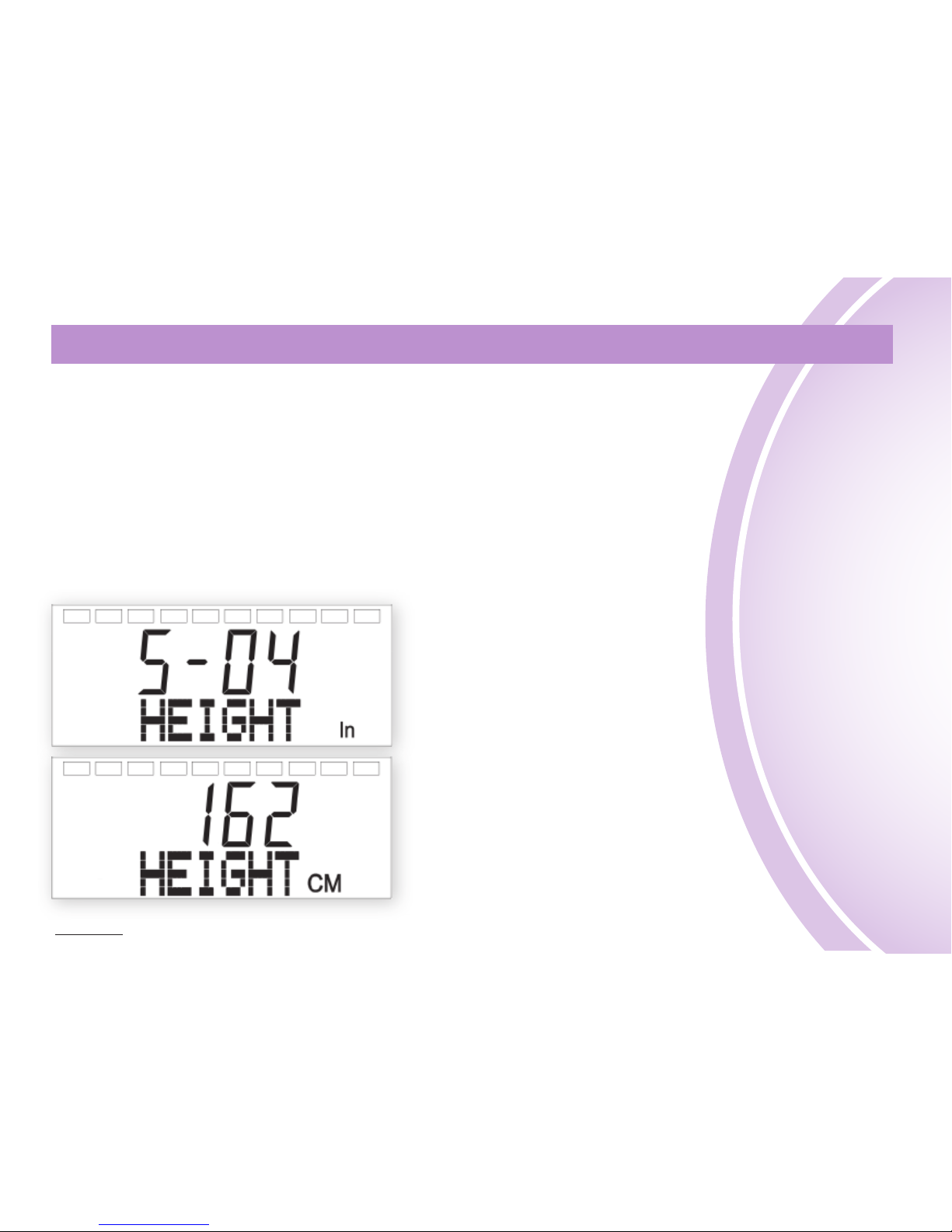
4. Your
POINTS
Pedometer will then ask you to confirm
your height, “IN” (for feet and inches) or “CM” (for
centimetres) will be displayed on the right of the screen.
The numbers on the screen will then flash – press UP or
DOWN to select the correct height and press ENTER.
NB: For feet and inches, you will need to confirm the
number of feet and then press ENTER, the inches on the
screen then flash. Once you have selected the correct
number of inches press ENTER to confirm.
5. Your POINTS Pedometer will then return to the main
stride screen and display your average stride length.
Setting your stride length
9
Back to top

3. Select “MANUAL” and follow the steps below to firstly
calculate your stride length.
Calculating Stride Length (in/cm)
• Walk 10 normal walking steps, marking from heel to heel.
• Measure the total distance in inches or cm.
• Divide the total distance by 10.
• You now have your average stride length in inches or cm.
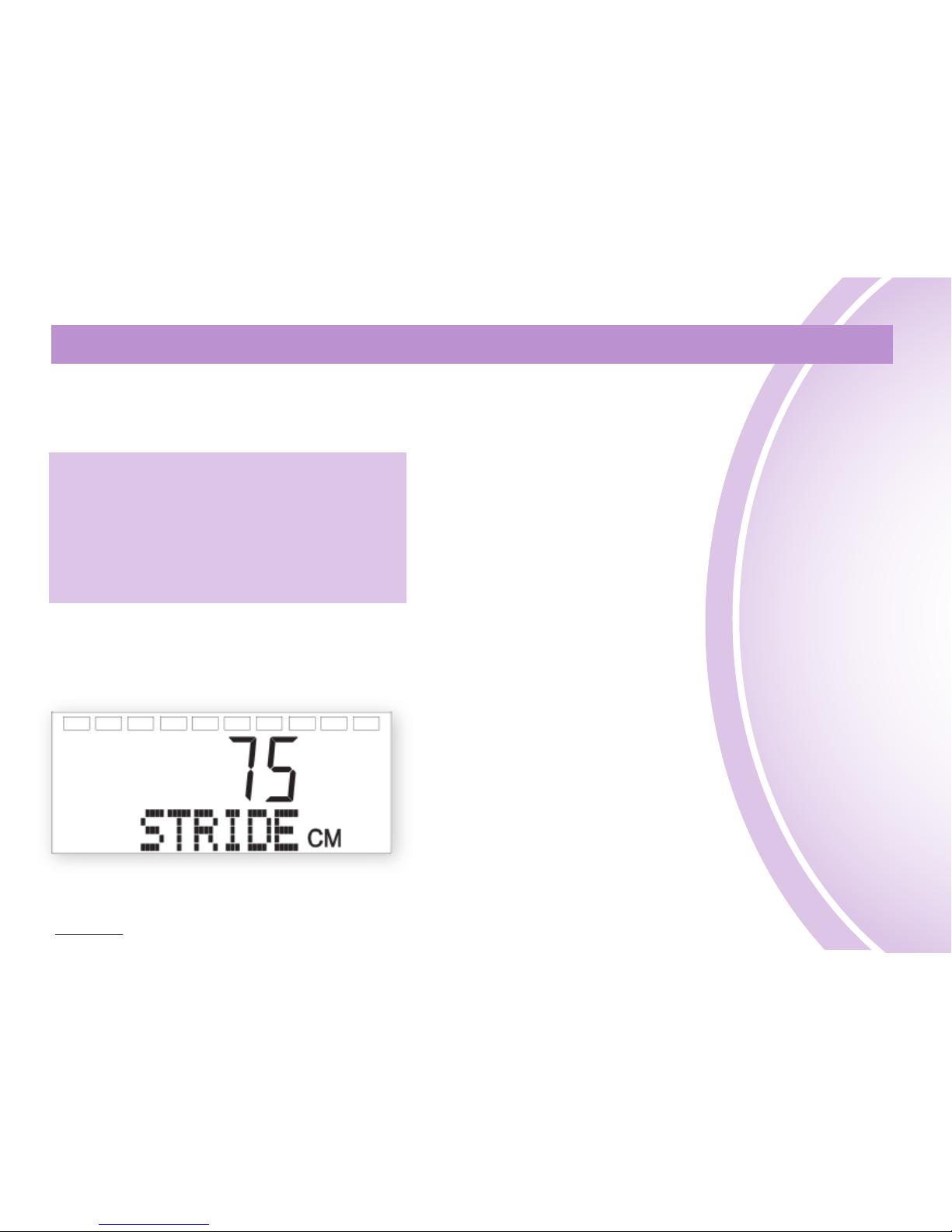
4. Press UP or DOWN and your POINTS Pedometer will
automatically show an average stride length of 75cm
(29.5in).
5. You can then press UP or DOWN to select your exact
stride length. Press ENTER to confirm and return to the
main stride screen.
Your personal stride length
10
Back to top
Altri manuali per POINTS
1
Indice
Altri manuali Weight Watchers Pedometro