
Zte MF29A Manuale utente

1
MF29A
User Manual

2
LEGAL INFORMATION
Copyright © 2012 ZTE CORPORATION.
All rights reserved.
No part of this publication may be excerpted, reproduced, translated
or utilized in any form or by any means, electronic or mechanical, in-
cluding photocopying and microlm, without the prior written permis-
sion of ZTE Corporation.
The manual is published by ZTE Corporation. We reserve the right
to make modications on print errors or update specications with-
out prior notice.
Version No. : R1.0
Edition Time : May 2012
Manual No. : 079584504555

3
Content
Welcome .............................................................. 5
General Information ............................................ 5
Safety Precautions...................................................................... 5
Cleaning and Maintaining ........................................................... 6
Limited Warranty......................................................................... 6
Limitation of Liability ................................................................... 7
Getting started..................................................... 8
Appearance ................................................................................ 8
LED Indicator ........................................................................ 8
Interface Description ............................................................. 9
Installation................................................................................. 10
Inserting (U)SIM Card ......................................................... 10
Connecting to Phone............................................................11
Connecting to Computer ......................................................11
Connecting to PSTN ............................................................11
Connecting to WAN/LAN......................................................11
Connecting with External Power ..........................................11
Switching on Your Device.................................................... 12
Power Supply............................................................................ 12
Voice ................................................................... 13
Making a Call ............................................................................ 13
Answering a Call....................................................................... 13
Internet Access.................................................. 14
Preparation ............................................................................... 14
Establishing a connection between your device and the client. 14
Accessing the Internet .............................................................. 15

4
Accessing the Internet by Bridge Mode .............................. 15
Accessing the Internet by Cable Broadband....................... 15
Accessing the Internet by 3G Gateway............................... 16
Accessing the WebGUI Conguration Page............................. 16
Login ......................................................................................... 17
Operation Mode ........................................................................ 18
WAN Connection ...................................................................... 18
In Cable Broadband mode .................................................. 18
In 3G Gateway mode .......................................................... 19
SMS .......................................................................................... 20
Sending new SMS............................................................... 20
Operating Messages in native............................................. 20
Settings..................................................................................... 21
3G Settings ......................................................................... 22
Wi-Fi Settings...................................................................... 24
Firewall................................................................................ 32
Advanced ............................................................................ 37
Usage of WPS .......................................................................... 40
U-Disk Master ........................................................................... 41
Logout....................................................................................... 41
Troubleshooting ................................................ 42
Technical Parameters........................................ 44
Glossary ............................................................. 45

5
Welcome
Thank you for choosing ZTE MF29A Router (hereinafter referred to
as “unit” or “router”). To get the most from your router and to keep it
in the best condition, please read this manual carefully.
The pictures, symbols and contents in this manual are for your refer-
ence only. They might not be completely identical with your router.
ZTE operates a policy of continuous development. We reserve the
right to update the technical specications in this manual at any time
without prior notice.
General Information
Safety Precautions
• Some electronic devices may be susceptible to electromagnetic
interference. Locate the router away from TV set, radio and other
electronic equipment to avoid electromagnetic interference.
• The router may interfere with medical devices like hearing aids
and pacemakers. Consult a physician or the manufacturer of the
medical device before using the router.
• Please keep yourself at least 20 centimeters away from router.
• Do not use your router in dangerous environments such as oil
terminals or chemical factories where there are explosive gases
or explosive products being processed.
• Please use original accessories or accessories that are
authorized by ZTE. Unauthorized accessories may affect the
router performance, damage the router or cause danger to you.
• Do not attempt to dismantle the router. There are no user
serviceable parts.
• Do not allow the router or accessories to come into contact with
liquid or moisture at any time. Do not immerse the router in any
liquid.

6
• Do not place objects on top of the router. This may lead to
overheating of the device.
• The device must be placed in ventilation environment for use.
• Do not expose the router to direct sunlight or store it in hot areas.
High temperature can shorten the life of electronic devices.
• Do not allow children to play with the router or charger.
• Keep the length of the cable between the router and the phone
less than 10 meters.
• The router is for indoor use only. Do not use the router outside.
Do not connect telephone extensions which run outside of the
building. These can result in lightning damage to your unit.
Cleaning and Maintaining
• Use an antistatic cloth to clean the router. Do not use chemical
or abrasive cleanser as these could damage the plastic case.
Turn off your router before you clean it.
• Use the router within the temperature range of -10°C ~ +55°C,
and the storage temperature range is -20°C ~ +65°C. The
humidity range is 5%~95%.
• Do not use your router during a thunderstorm. Remove the
mains power pack from the wall socket.
• Do not take out your (U)SIM card unnecessarily. The (U)SIM
card may be easily lost or it can be damaged by static electricity.
Limited Warranty
• This warranty does not apply to defects or errors in the Product
caused by:
i. Reasonable Router Appearance Disguration.
ii. End User’s failure to follow ZTE’s installation, operation or
maintenance instructions or procedures.

7
iii. End User’s mishandling, misuse, negligence, or improper
installation, disassemble, storage, servicing or operation of
the Product.
iv. Modications or repairs not made by ZTE or a ZTE-certied
individual.
v. Power failures, surges, re, ood, accident, actions of third
parties or other events outside ZTE’s reasonable control.
vi. Usage of products of third Parties, or usage in conjunction
with third party products provided that such defects is due to
the combined usage.
vii. Any other cause beyond the range of normal usage for
Products. End User shall have no right to reject, return, or
receive a refund for any Product from ZTE under the above-
mentioned situations.
• This warranty is end user’s sole remedy and ZTE's sole liability
for defective or nonconforming items, and is in lieu of all other
warranties, expressed, implied or statutory, including but not
limited to the implied warranties of merchantability and fitness
for a particular purpose, unless otherwise required under the
mandatory provisions of the law.
Limitation of Liability
ZTE shall not be liable for any loss of profits or indirect, special,
incidental or consequential damages resulting from or arising out
of or in connection with using of this product, whether or not ZTE
had been advised, knew or should have known of the possibility of
such damages, including, but not limited to lost prots, interruption
of business, cost of capital, cost of substitute facilities or product, or
any downtime cost.

8
Getting started
The router operates on the HSPA+/HSUPA/HSDPA/WCDMA net-
work and GSM/GPRS/EDGE network and supports voice and data
service.
Appearance
LED Indicator
Indicator State Description
1 WAN signal
strength indica-
tion
ON Signal strength is very good or good
(RSSI >= -90dBm)
Blinking Signal strength is weak (-100dBm <
RSSI < -90dBm)
OFF No signal
2 Network mode
indication
Blue Registered to 3G network
Red Registered to 2G network
OFF Not Registered

9
3 WAN connec-
tion status indi-
cation
ON WAN connection established (PDP
activated)
Blinking WAN connection establishing (PDP
activating)
OFF WAN connection not established
(PDP not activated)
4 Phone status
indication
Off PSTN not connected
Blinking Calling via PSTN
On PSTN connected
5 Phone status
indication
Off Local phone hang up
Blinking Phone picked up, ringing or network
CS registering
On In calling.
6 WiFi indication
Off WLAN shut down
Blinking WLAN working normally with data
transmission
7 Power indica-
tion
ON External power supply works nor-
mally.
OFF External power supply is disconnect-
ed or power off.
Interface Description
1. Phone: Standard RJ11 connector for Telephone.
10
2. PSTN: Standard RJ11 connector for PSTN.
3. WAN/LAN: Ethernet connections to internet. In 3G Gateway
mode, it is LAN connector. In Cable broadband and Bridge
mode, it is WAN connector.
4. LAN1~LAN3: Ethernet connections to computer.
5. Reset: Reset button
6. ON/OFF: Turn the router ON or OFF.
7. ANT: Connect to external antenna.
8. PRESS ANT ON: To switch between internal antenna and
external antenna modes. By default setting, the router uses the
internal antenna. When you connect the router with the antenna
through ANT port, you can press ANT ON to change the router
from the internal antenna mode to external antenna mode.
Press ANT on again to change back.
Note: If you press ANT ON without using external antenna, the RSSI
signal of the router will be poor.
9. POWER Socket: Connection to the external power supply.
Installation
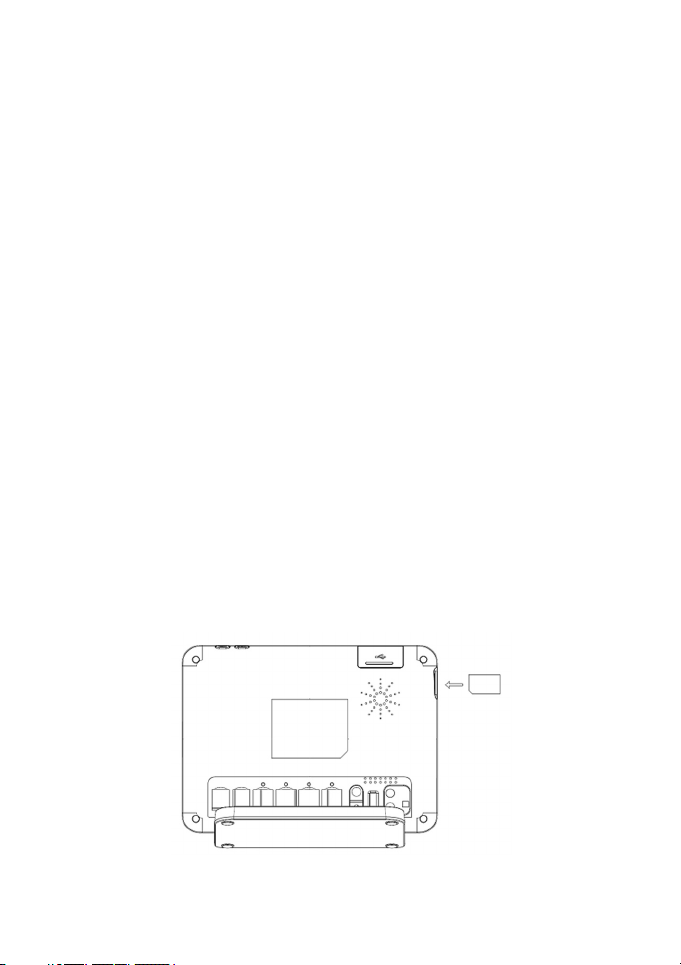
Inserting (U)SIM Card
Insert the (U)SIM card into the (U)SIM port.
Altri manuali per MF29A
3
Indice
Altri manuali Zte Router wireless


