
SYMA X5SW-V3 Manuale utente

12+
X
5SW-V3
GYRO REMOTE CONTROL SERIES
4-CHANNEL PRESSURE HOVERING HEIGHT-ADJUSTMENT REMOTE CONTROL 6-AXIS FLYCOPTER
USER MANUAL
OPERATING STANDARDS: GB/T26701-2011
MAIN FEATURES
● Utilizes the 4-axis structure, enabling the aircraft to be even more
flexible, speedy,and possessing a relatively stronger wind-withstanding
capability. Also it can conduct flights in interior as well as exterior
environment.
● A 6-axis gyro direction stabiliser is built-in, ensuring precise positioning
in the air.
● The structure uses modular designs, making installation simple and
repair and maintenance easier.
● Capable of 360° 3D overturning function and fling-flying function.
● Headless function is enabling the aircraft to be summoned back with ease.
● Brand new pressure hovering height-adjustment function.
● HD wifi real-time transmission aerial.
● New functions increased are auto take-off and landing .

-1-
The content, specifications or accessory packaging of internal products
in this user manual is strictly for reference only. Our company will not be
responsible for errors in the printed contents and it will not be able to
proactively notify the consumers. For any updates or errors, please abide
by the SYMA MODEL AIRCRAFT’s website as accurate.
1. Please store the smaller-sized aircraft accessories in places that are
out of reach of children, in order to avoid the occurrence of accidents.
2. This aircraft is very powerful. For all first-time flight, it shall be
observed that the left gear shift joystick must be slowly pushed in
order to prevent the aircraft from ascending too quickly and result in
unnecessary collision and damages.
3. When the flight is ended, the power supply of the remote control shall
be switched off firstly, and then, followed by the switching off of the
power supply of the aircraft.
4. Avoid placing the batteries in places with high temperatures and
exposure to heat (for example, naked light or electrical equipment
installations).
5. Take extra precaution to ensure that the aircraft is at a distance of 2 to
3 metres from the user or other people in order to prevent the aircraft
from colliding into the head, face or body, etc. of other people during
landing.
6. When young children are operating the aircraft, it shall be ensured that
the adults are guiding and making sure that the aircraft control is
within the viewing range of the controller (or instructor) such that it
makes the control very convenient.
7. Non-rechargeable batteries are prohibited from recharging. When
installing or changing the batteries, please take extra care on the
polarities of the batteries; mixing new and old batteries or different
types of batteries are strictly disallowed.
8. When the aircraft is not in use, please switch off the power supplies
of both the aircraft and the remote control, and remove the batteries
in the remote control.
9. The terminals & power supply cannot be short-circuited.
10.Product operating temperature of 35°.
Safety guide

-2-
1. Always use dry and soft cloth to clean this product.
2. Avoid this product to be exposed to sunlight or heat.
3. Avoid immersing these toys in the water, otherwise ,the electronic
parts may be damaged.
4. Regularly Check and inspect the plug and other accessories. If any
damages are discovered, please immediately stop using it, until it is
completely repaired in good working condition.
Repair and maintenance
The following items can be found in this product package:
Package description
• Aircraft
• Remote Control
• Main Blade
• Instruction Manual
• Screwdriver
• Protection Gear
• WiFi Camera
• Mobile Phone Retaining Clip
• Screws (4 nos.)
• Foot Stand
• USB Cable
Re-installing the Blades
1. Pull out the blade decor cap.
2. Remove the screws before re-installing
the blades.
3. A labeled blades fit on the A labeled
motors, B labeled blades fit on the B
labeled motors. Use the screws to
tighten the blades. Refer to the image.

Understanding your remote control
Remote control’s button function description:
-3-
Power ON/OFF
Left function lever
(Keep pressing this
lever for trimming .
To clear all the
trimming settings,
keep pressing this
lever and re-turn
on the power switch
at the same time . )
Phone attaching clamp
Right function lever
( Pressing over 3
seconds for entering
headless mode than
pressing again to
exit. Short pressing
for change High / Low
speed, one beep
means Low Speed and
twice beep means High
Speed. )
Photo
Video
360° Flip
Short press for auto
take-off and landing
Battery installation for remote control:
1. Battery Installation Method: Open up the battery cover at the back of
the remote control. Correctly place 4 x AA alkaline batteries in the
battery box in strict adherence to the polarity instructions (the
batteries are optional).
Battery cover
4 x AA Batteries

-4-
Installation procedures for foot stand
and protective ring of the aircraft
Wifi real-time transmission aerial
photo-taking component installation
Figure (1) Figure (2) Figure (3)
1. Install the foot
stand into the
main body as
shown in
Figure (1).
2. Install the protective
gear into the main
body as shown in
Figure (2).
3. Tighten the screws
in a clockwise
direction as shown
in Figure (3).
Mobile phone retaining clip installation:
2. Align the mobile
phone retaining clip
with the antenna of
the remote control
and insert it in.
3. Use strength to press
against the spring
section of the
retaining clip to
adjust the size.
1.Pressing on the mobile
phone clip cover behind
the remote control and
pushing it out upward.
1. During the battery installation, it must be ensured
that the polarities of the batteries are matched with
that of the battery box. No battery shall be installed
with the opposite polarity.
2. Please do not use new and old batteries together.
3. Please do not use different types of batteries
together.

-5-
Wifi real-time transmission aerial
photo-taking component installation
For Android phones,download and install the SYMA GO APP by visiting the
www.symatoys.com or by scanning the QR code.
For IOS Apple phones,download and install the SYMA GO APP by visiting the App
Store or by scanning the QR code.
1.Downloading the installation software
Reminder: QR codes are provided on the packaging box
and at the bottom of the user manual. Please visit website
www.symatoys.com or the App Store/Google Play to obtain
the newest SYAM GO App.
2.How to connect
1.Connect the model to its power source, the camera indicator light should turn
green. Within 10 seconds, the light will flash slowly and the camera will be
waiting for a connection with a smartphone.
2.At this time, enter the “Settings” option on your phone, and turn on WiFi. In the
WiFi search list, look for a network called “FPV-WIFI- ****” and connect to it. Once
connection has been established, exit the “Settings” option.
3.Open the SYMA GO App, click the “START” icon to enter the control interface.
A full bar in the WiFi signal icon indicates the strongest possible signal.
1. Open up SYMA GO
APP.
3. The phone’s screen
will display real-time
images.
2. Click the "START" icon,
the system will enter the
APP operation interface
automatically.
3. Interface icon instructions
Mobile APP control interface
Take phone
WIFI Signal
Record
Time
Right Joystick
Trimming A
Trimming C
Return
Flight-track
Headless mode
Gravity induction mode
Check the memory card memory (need to connect WIFI, and
read the memory card data need to wait a few seconds)
Check the phone memory
Click for display/hide
the toolbar
One key
start/stop
Left Joystick
One Key take-off/
Landing
Trimming B
Display/hide Joystick
High-Low Speed
switch
Level Calibration/defining
headless forward direction

-6-
Aircraft controlling diagram
Operating direction
Ascending and descending control Forward and backward control
When the left joystick (Accelerator) is
pushed upwards or downwards,the
aircraft will ascend or descend
correspondingly.
When the right joystick (Turning Rudder)
is pushed upwards or downwards, the
aircraft will advance forward or backward
correspondingly.
Adjust the scale can change
the flight distance
Flight-track operation interface
Press the flight-track button to enter into the
flight-track interface, and the air vehicle will
flight in accordance with recorded route.
4. Real-time aerial photography uploading:
Photo/Record: When the 720P WiFi camera is operating normally,press the photo/
record icon in the real-time upload interface to take photos/videos.(Photos/recordings
that were taken can be viewed in the “View Photo and Video” folder)
Note: When using the real-time upload operation in the app,
the range for the operating distance of the aircraft will reduce
by half. The WiFi real-time upload function is optimal in
spacious environments.

-7-
Left turning and right turning control
Left side flying and right side flying control
When the left joystick (Accelerator) is
pushed towards the left or right, the
aircraft will turn left or right
correspondingly.
When the right joystick (Turning Rudder)
is pushed towards the left or right, the
aircraft will fly sideward on the left or
right correspondingly.
Fine-tuning operation
Forward and backward fine-tuning control
Left/right side flying fine-tuning control
Left/right side turning fine-tuning control
Under the condition of aerobat hovering in the air when
aerobat automatically flies forward/backward, one could press
down the left operating arm and at the same time push the right
operating arm forward/backward to adjust the direction.
Don’t unloose the left operating arm until aerobat comes into
a stable state.
Under the condition of aerobat hovering in the air when aerobat
automatically flies towards the left/right side, one could press
down the left operating arm and at the same time push the right
operating arm to the right/left to adjust the direction. Don’t
unloose the left operating arm until aerobat comes into a stable
state.
Under the condition of aerobat hovering in the air when aerobat
automatically rotates and flies towards the left/right, one could
press down the left operating arm and at the same time push
the left operating arm to the right/left to adjust the direction.
Don’t unloose the left operating arm until aerobat comes into
a stable state.

-8-
Flight preparation and switching
off of the aircraft
I. Flight preparation
Step 1: Open up the
power supply switch
of the remote control.
Step 2: Slide backward
the battery cover, and
connect the battery
connector with the
power supply
connection interface.
Step 3: Switch on the
aircraft’s switch at
the bottom area.
Step 4: Push the left lever (accelerator) to the
highest point and then reset to the lowest point.
When the indicator lights in the aircraft change
from quick flashing to the continuous lighting,
it means that the aircraft goes into the flight
standby mode.
2. Switching on the aircraft
Method 1: push the left lever (accelerator) to
the highest point and then reset to the center,
the ventilation blade of aircraft starts rotating
slowly.
-9-
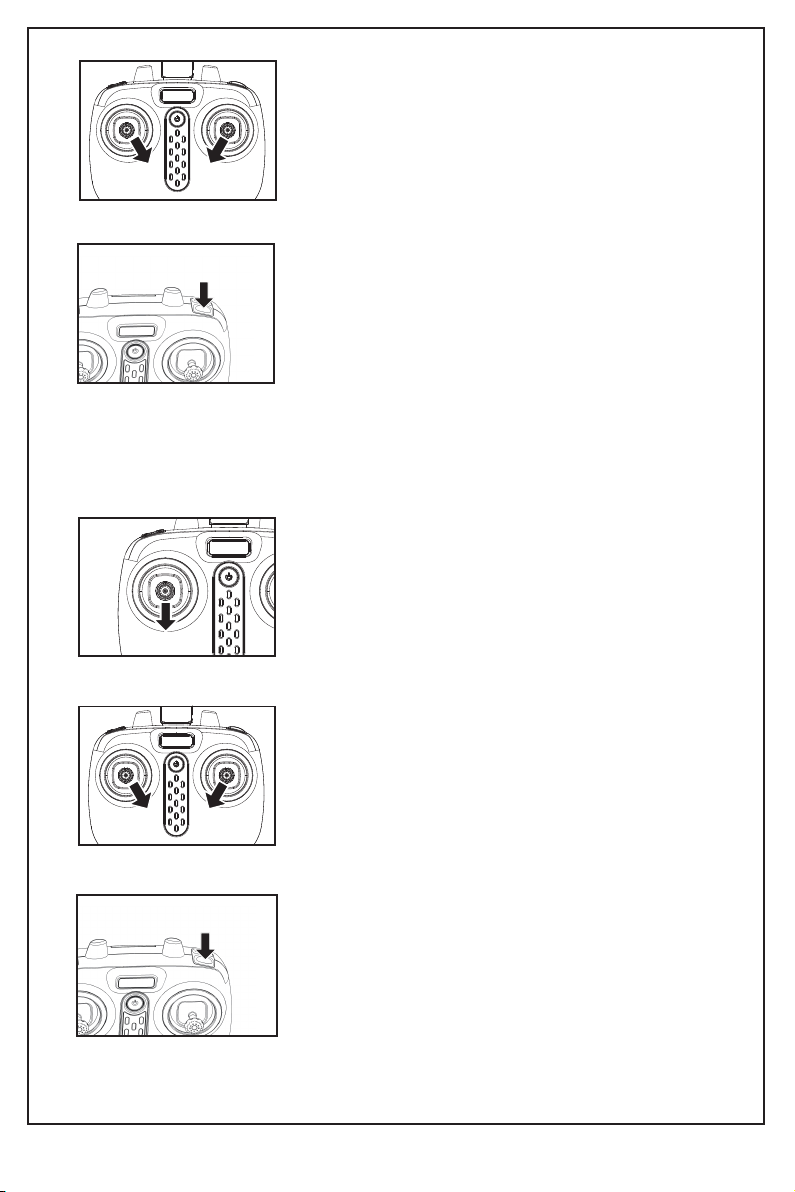
BMethod 3: When the aircraft is in flight, press
the B button, the aircraft fell to the ground
and slowly closed the aircraft.
3. Switching off the aircraft
Method 1: Push the left joystick (Accelerator)
to the lowest level and stay there for 2 to 3
seconds, the aircraft can then be switched
off.
Method 2: Move the left and right joysticks
inwards in an internal loop of “8” for 1
second, and the aircraft can be switched
off.
Method 2: Move the left and right joysticks
inwards in an internal loop of “8” for 1
second, the ventilation blade of aircraft
starts rotating slowly.
BMethod 3: When the vehicle is stationary,
press the B button, the vehicle slowly
rotating blades, automatically rises to a
certain height.
Indice
Altri manuali SYMA Drone

SYMA
SYMA X200W Manuale utente

SYMA
SYMA X220W Manuale utente

SYMA
SYMA X26 Manuale utente

SYMA
SYMA X200 Manuale utente

SYMA
SYMA X14W Manuale utente

SYMA
SYMA X500 Manuale utente

SYMA
SYMA X600W Manuale utente

SYMA
SYMA X300 Manuale utente

SYMA
SYMA GC88752-30 Manuale utente

SYMA
SYMA GYRO REMOTE CONTROL SERIES Manuale utente

SYMA
SYMA X110W Manuale utente

SYMA
SYMA LOG1628-R2 Manuale utente

SYMA
SYMA GC88752-28 Manuale utente

SYMA
SYMA X800W Manuale utente

SYMA
SYMA X660 Manuale utente

SYMA
SYMA GC88752-13 Manuale utente

SYMA
SYMA D1650WH Manuale utente

SYMA
SYMA X5C Manuale utente

SYMA
SYMA X5UW-D Manuale utente

SYMA
SYMA LOG1710 Manuale utente


