
FIC AT31 Istruzioni per il montaggio

AT31
MAINBOARD
MANUAL
DOC No.: M01806
Rev. :A1
Date : 6, 2002
Part No. : 25-11650 -01

Handling Precautions
Warning:
1. Static electricity may cause damage to the integrated circuits on
the motherboard. Before handling any motherboard outside of its
protective packaging, ensure that there is no static electric charge
in your body.
2. There is a danger of explosion if the battery is incorrectly
replaced. Replace only with the same or an equivalent type
recommended by the manufacturer.
3. Discard used batteries according to the manufacturer’s
instructions.
4. Never run the processor without the heatsink properly and firmly
attached. PERMANENT DAMAGE WILL RESULT!
Observe the following basic precautions when handling the motherboard
or other computer components:
nWear a static wrist strap which fits around your wrist and is
connected to a natural earth ground.
nTouch a grounded or anti-static surface or a metal fixture such as a
water pipe.
nAvoid contacting the components on add-on cards, motherboards,
and modules with the golden fingers connectors plugged into the
expansion slot. It is best to handle system components by their
mounting brackets.
The above methods prevent static build-up and cause it to be discharged
properly.
Trademark
All trademarks mentioned in this manual are registered properly of
the respective owners.
Handling Precautions
This manual may not, in whole or in part, be photocopied, reproduced,
transcribed, translated, or transmitted in whatever form without the
written consent of the manufacturer, except for copies retained by the
purchaser for personal archival purposes.
Notice

i
Tableof Contents
Table of Contents
Chapter 1 Overview
Package Checklist .......................................................................... 1-2
The AT31 Mainboard ................................................................ 1-3
Main Features ................................................................................ 1-4
FIC Unique Innovation for Users (NOVUS) -
Enhanced Mainboard Features and System Support .................... 1-6
Chapter 2 Installation Procedures
Quick Reference (from Page 2-2 to 2-4) .......................................... 2-2
Mainboard Layout .................................................................... 2-2
1). Clear CMOS, FSB Speed Select
CPU/SDRAM/PCI/AGP Speed Select ........................... 2-3
2). Front Panel Block Cable Connection ............................ 2-4
3). CPU Fan Installation .................................................... 2-4
1). Set System Jumpers/Switches ................................................... 2-5
Clear CMOS: J3 ................................................................. 2-5
FSB and CPU/SDRAM/PCI/AGP Speed Select:
J4, J5, and J7 ...................................................................... 2-6
2). Install Memory Modules .......................................................... 2-7
3). Install the CPU .......................................................................... 2-8
4). Install Expansion Cards ............................................................. 2-9
5). Connect Devices ....................................................................... 2-10
Floppy Diskette Drive Connector ..................................... 2-10
IDE Device Connectors ..................................................... 2-11
ATX Power Connectors .................................................... 2-11
Fan Connectors ................................................................. 2-12
TV Out Connector ............................................................. 2-12
Wake-On-Ring Connector ................................................. 2-13
Quick Reference (German) G-1
Quick Reference (French) F-1
Quick Reference (Spanish) S-1
Quick Reference (Japanese) J-1
Quick Reference (Chinese) C-1
Quick Reference (Simplified Chinese) |||||||||||||SC-1

ii
AT31MainboardManual
Wake-On-Lan Connector .................................................. 2-13
CD Audio-In Connectors ................................................... 2-14
SPDIF Out Connector (optional) ....................................... 2-14
Front Panel Block and IR Connector .................................. 2-15
PS/2 Keyboard and Mouse Connector ............................. 2-16
Game/MIDI Connector ...................................................... 2-16
Universal Serial Bus Connectors ....................................... 2-17
Serial Port Connectors ....................................................... 2-17
Printer Connector .............................................................. 2-18
Audio I/O Jacks ................................................................ 2-18
LAN I/O Connector (optional) .......................................... 2-19
Chapter 3 BIOS Setup
CMOS Setup Utility ....................................................................... 3-1
Standard CMOS Setup ................................................................... 3-2
Advanced BIOS Features .............................................................. 3-4
Advanced Chipset Features .......................................................... 3-8
Integrated Peripherals .................................................................... 3-9
Power Management Setup ............................................................. 3-14
PnP/PCI Configurations ................................................................. 3-18
PC Health Status ............................................................................ 3-20
Frequency/Voltage Control ............................................................ 3-20
Load Fail-Safe Defaults .................................................................. 3-21
Load Optimized Defaults ................................................................ 3-21
Supervisor/User Password ............................................................ 3-21
Save and Exit Setup ....................................................................... 3-22
Exit without Saving ........................................................................ 3-22

1 - 1
Overview
Overview
Chapter 1
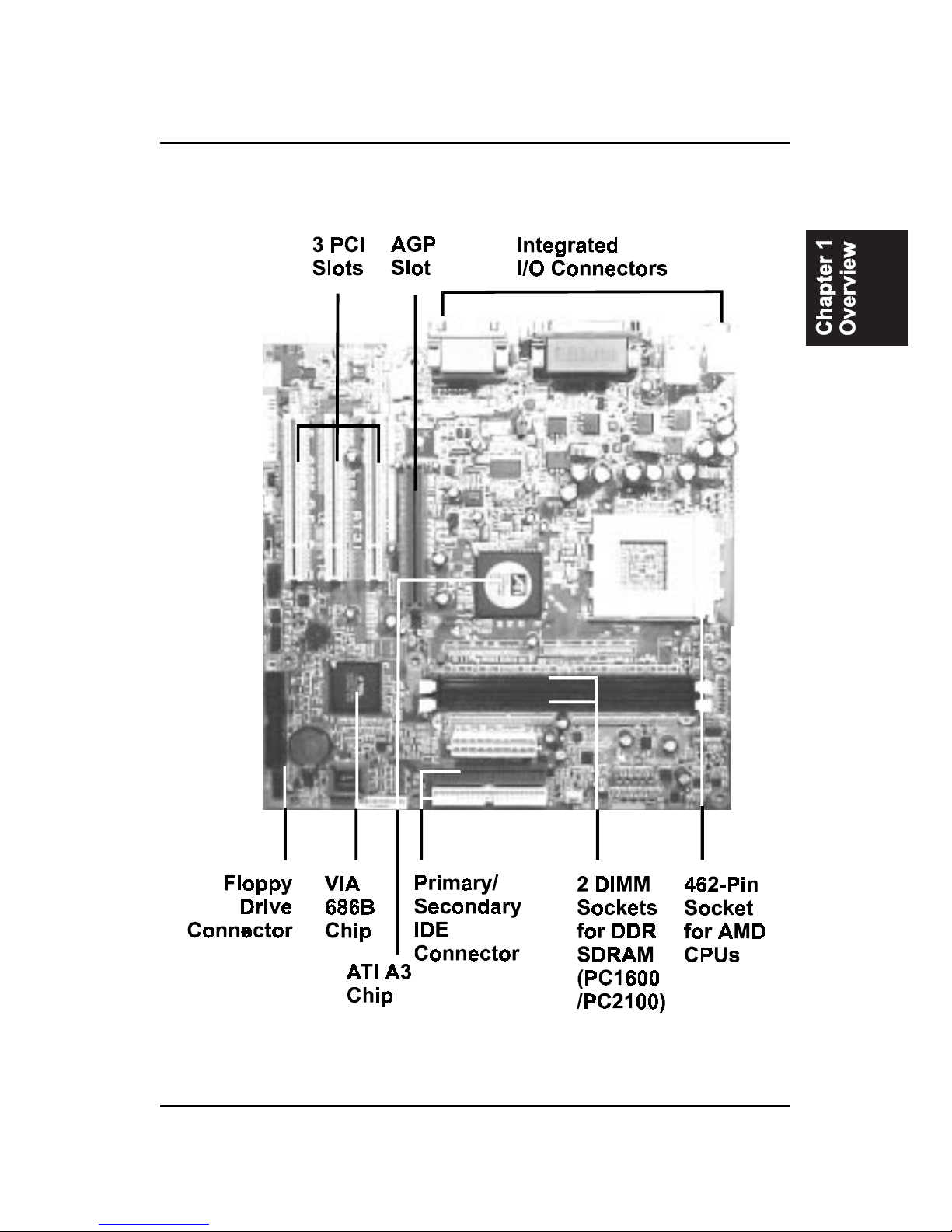
The new 1stMainboard®AT31Ôis an Micro ATX sized motherboard sup-
porting the latest generation of AMD®processors at industry leading speeds.
By utilizing DDR ( Double Data Rate ) transfer rate the 100/133 MHz system bus
effectively reaches Front Side Bus speeds of 200/266 MHz. The board pro-
vides users with an ATA100 data transaction for hard drives and allows up to
2 GB memory totally by 2 PC1600/PC2100 (DDR200/266) DIMM sockets.
The AT31 is based around the high performance ATI IGP320Ôcore chip as a
North Bridge and VIA VT82686BÔ as a South Bridge. The virtual AGP4x
functions supported by ATI IGP320Ôthat ideal for Windows 2000Ôpro-
vides you with a photo-realistic 3D experience suitable for the most 3D games
and software environments. AC97 Codec that embedded in VIA 686B, ensures
high quality sound effect.
The mainboard also comes equipped with the new NOVUS®range of innova-
tive features that assist in the installation and maintenance. The features in-
clude Easy Key, which provides instant keyboard access to the BIOS for
adjustments to Clock and Default settings and LogoGenie, which allows you
to create your own customized logo to be displayed during system boot up.
The BIOS Guardian is an Anti Virus utility that prevents viruses from damag-
ing your system BIOS and rendering your system inoperative.
Expansion is provided by 1 AGP 4X and 3 PCI slots. In addition, the
1stMainboard is equipped standard I/O connections include 2 serial ports (1
by pinheader), 1 parallel port, 1 VGA port, 1 PS/2 mouse and keyboard connec-
tor, 4 USB ports (2 by pinheader), 1 IR port by pinheader, and 1 media connec-
tor (Line-In, Line-Out, Mic-In, 1 front audio, 1 game port).

1 - 2
AT31MainboardManual
Package Checklist
If you discover any item below was damaged or lost, please contact your
vendor.
þThe mainboard þThis user manual
þOneFDDcable þ CD software
þOneATA100cable
oTV Out Paddle Card (Giftbox only)
IMPORTANT:AMDCPUHEATSINKINSTALLATION
Be ware finish heat sink install. Before you boot system, please
check the heat sink is complete contact with die of CPU.
The poor contact will bring about over heat, it may damage your
processor.
Itisstronglyrecommendedthatatleasta250-watt ATXpowerpupply
be used for this motherboard. Make sure that your ATX power sup-
ply can supply at least 20 amperes on teh +5-Volt lead and 10mA
on the +5-Volt standby lead (+5VSB). Your system may become
unstable / unreliable and may experience difficulty in powering up if
your power supply is inadequate.
NOTE: CD Pro that contains patch files, onboard video/audio chip
drivers, related online help and other useful information can be
found in your mainboard package.
Please install it right after your Windows operating system installa-
tion is done.
Place your CD Pro in the drive, an operating menu will
appears in your monitor. Please select
Auto Installation
. It will auto-
matically detect which software tools (patch files, drivers) that the
mainboard needs. Press OK button to go through the whole instal-
lation procedure in a very straight forward and easy way. It also
provides you with a custom way to select wanted patch files and
software drivers that for onboard chips use. The top menu of the
CD Pro lists all the functions that allowed by this board.
1 - 3
Overview
The AT31 Mainboard

1 - 4
AT31MainboardManual
Main Features
nEasy Installation
||BIOS with support for Plug and Play, auto detection of IDE hard drives,
||LS-120|drives, IDE ZIP drives. The mainboard supports Windows 2000,
|Windows XP only.
nLeading Edge Chipset
ATI IGP320 is a North Bridge with integrated 2D/3D graphics accelerator.
The chip is designed for offering a reliable, effective,and excellent perfor-
mance. It contains internal AGP controller, concurrent PCI bus controller,
advanced DRAM controller, and power management support.
nVersatile Main Memory Support
Accepts up to total 2 GB DRAM using two DDR DIMMs from 256 MB to
2 GB with support for lightenning-fast PC1600/PC2100 (DDR200/266) DDR
SDRAM .
nAMD Processors Support
Athlon: 900 MHz to 1.4 GHz and up*at 200 MHz FSB/
1.1 GHz to 1.4 GHz at 266 MHz FSB; (1.2 GHz not included)
Athlon XP: 1500+ to 2100+ and up* at 266 MHz FSB;
Duron: 900 MHz to 1.3 GHz and up* at 200 MHz FSB
(1.0, 1.2 GHz not included)
(*: not tested yet)
nEnhanced PCI Bus Master IDE Controller with Ultra DMA 33/66/100
Support
Integrated Enhanced PCI Bus Master IDE controller features two dual-
channel connectors that up to four Enhanced IDE devices, including CD-
ROM and Tape Backup Drives, as well as Hard Disk Drives supporting
the new Ultra DMA 100 protocol. Standard PIO Mode 3, PIO Mode 4,
DMA Mode 2, DMA Mode 4, UltraDMA-100 Mode 5 devices are also
supported.

1 - 5
Overview
nIntegrated Audio Subsystem
Embedded audio features in the VIA 686B provide hardware Sound
BlasterProfor Windows DOS box and real mode DOS legacy compatibil-
ity, dual full-duplex Direct Sound channels between system memory and
AC97 link.
nSuper Multi Input/Output (I/O) Support
Integrated super I/O controller in the VIA 686B features two high-speed
UART serial ports, one multi-mode (standard/ECP/EPP) parallel port, one
IR port, and one FDD connector.
nConvenient Rear Panel USB Connection Support
Two USB ports integrated in the rear I/O panel with two extra USB pin-
heads for either front or rear panel connections to the growing number of
USB compliant peripheral devices on the market.
nLAN Support (optional)
One RJ45 LAN jack on the rear panel and onboard LAN controller allows
you to connect with network system in a very easy way.
nAGP and PCI Expansion Slots
One AGP and three PCI Bus expansion slots provided the room to install
a full range of add-on cards.
(For supported AGP cards, please refer to the approval sheet on FIC
web site.)
nTV Out Support (optional)
Support both NTSC and PAL TV with an optional TV out bracket and a
cable.
1 - 6
AT31MainboardManual
nBIOS Guardian
BIOS Guardian effectively acts as a fire-wall against viruses that can
attack the BIOS while the system is running and by default is enabled.
WARNING:
BIOSGuardianmust bedisabledbefore reflashBIOS.
nEasy Key
Instead of completing the multi-layered BIOS setup process these 3 Easy
Key functions provide direct access to Sub-Menu when completing BIOS
settings adjustments.
Easy-Keys are as follows:
Ctrl + c: To enter clock settings menu.
Ctrl + p: To load Performance Default settings and restart.
Ctrl + f: To load Fail-Safe Default settings and restart.
NOTE:
Please read Page 3-7 for detail information.
FIC Unique Innovation for Users (NOVUS) -
Enhanced Mainboard Features and System Support
nLogoGenie
A user friendly GUI supporting Windows 95/98/98SE (not Windows 2000/
NT/ME/XP), LogoGenie allows you to customize, create or select a Logo
which will be displayed when the system is booting.
NOTE:
Please read Page 3-7 for detail information.
Indice
Altri manuali FIC Scheda madre

FIC
FIC VT-501 Manuale utente

FIC
FIC VI35VL Manuale utente

FIC
FIC FR33 Manuale utente

FIC
FIC PA-2006 Manuale utente

FIC
FIC VT-502 Manuale utente

FIC
FIC 4386 WC-HD Manuale utente

FIC
FIC 1st Mainboard KC19+ Manuale utente

FIC
FIC PA-2010+ Manuale utente

FIC
FIC VA-501 Manuale utente

FIC
FIC P4M-865G MAX Manuale utente


Manuali Scheda madre popolari di altre marche


Telit Wireless Solutions
Telit Wireless Solutions SL869-3DR Manuale utente

Gigabyte
Gigabyte GA-9IVDT Manuale utente

Texas Instruments
Texas Instruments ADS8372EVM Manuale utente

Commell
Commell MS-C73 Manuale utente

IBT Technologies
IBT Technologies MB860 Manuale utente

Nvidia
Nvidia TEGRA DG-04927-001_V01 Manuale utente


